Answer security questionnaires with AI, in the customer's own file
From the file a customer sends you to approved answers in their own layout. The AI writes the first draft of every answer and tells you where it came from and how sure it is. Your team does the rest.
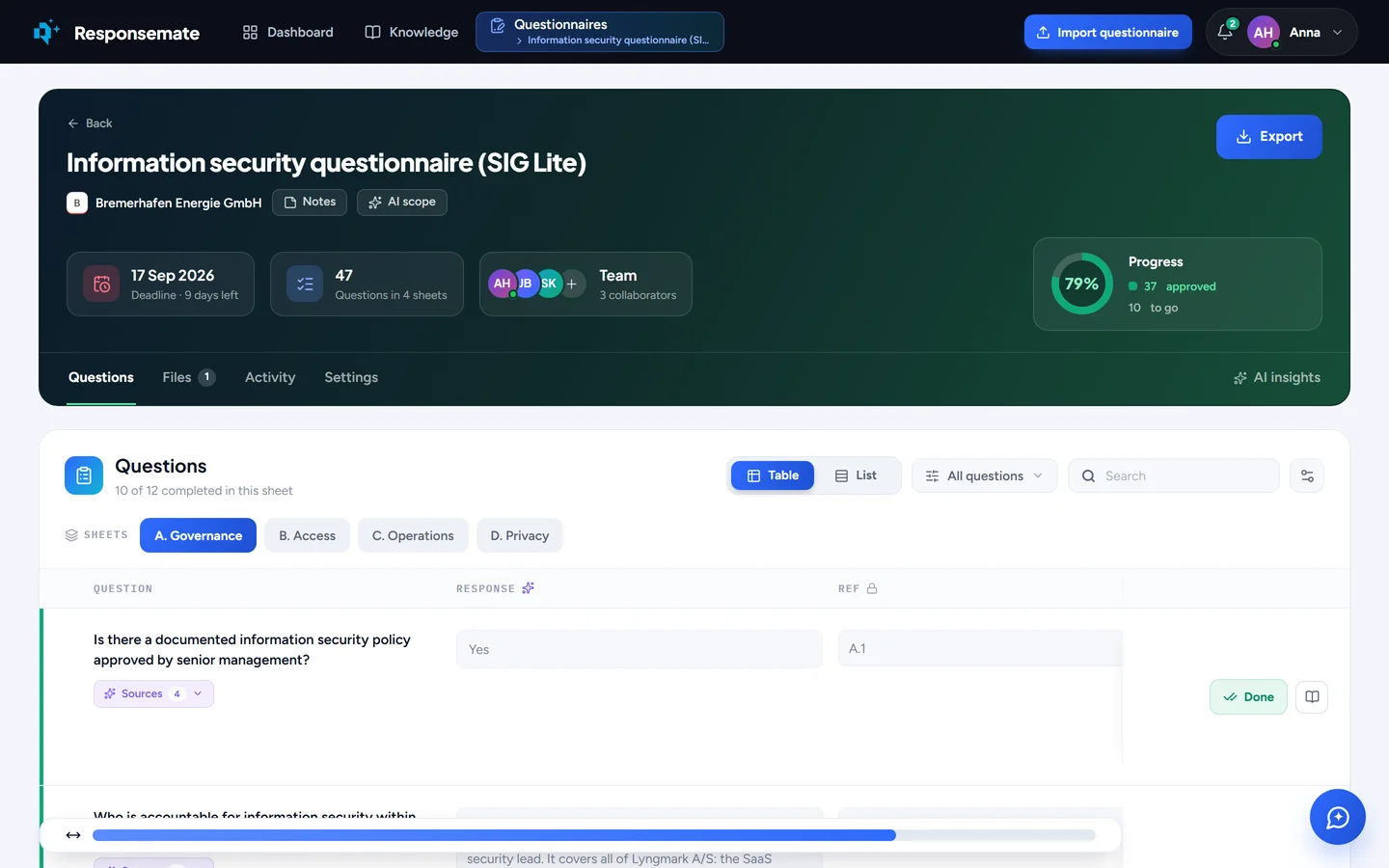
A questionnaire: deadline, team and progress at the top, the questions below in the customer's own columns.
The questionnaire arrives as a file. It leaves as the same file, filled in.
Most teams get the same questions in a hundred different layouts. Responsemate keeps the layout the customer chose, drafts into it, and lets you send back exactly what they sent you. Every sheet, every column, every dropdown.
- Excel, Word and PDF files, pasted text, or a questionnaire written by hand
- A draft on every question with the sources it used and a confidence score
- Approve one by one or all at once, flag with a reason, assign to a colleague
- Several answers on one Q&A entry: pick the variant this customer needs
- Deadlines, collaborators, a calendar and progress that counts approvals, not drafts
- Export to Excel or Word in the original layout, with every change on record

Import any questionnaire
Drop the file in. The AI reads it, proposes the title, client and deadline, finds the question and answer columns on every sheet and fills in the import form. You check it and press Import. A 300-question workbook with four sheets is ready in a minute, and the drafting starts as soon as you confirm.
- Excel and Word files, PDF, text pasted from an e-mail, or a web form read from its link (in beta)
- Multi-sheet workbooks, each sheet with its own settings for what the AI fills
- Per column: who may edit it, whether the AI targets it, an instruction and a priority
- Per cell: free text, a dropdown with the customer's own choices, yes or no, or read-only
- No file? Start empty, write the questions yourself, import into it later

Drafts with sources and a confidence score
Every question gets a draft from your knowledge base: Q&A entries, files, links and the answers you approved in earlier questionnaires. Each draft lists the sources it used. It also carries a confidence, High, Medium or Low, with the reasoning: how squarely the sources answer the question, how well they match it, how earlier drafts from the same sources held up under review, and how fresh those sources are. A Low draft whose only source is a two-year-old policy tells you to write that one yourself.
- Sources listed under every draft, one click to the passage used
- Confidence you can sort by, so the weakest drafts are reviewed first
- Drafts arrive one by one while you work; rerun the AI on any cell after adding knowledge
- An answer with no grounded source says so instead of guessing

Review it together
Each answer cell has a small AI toolbar: validate the answer against your sources, improve or shorten it, explain what the question is asking, or find similar questions you answered before. Assign the legal question to your counsel with a flag saying what to check, approve the rest in bulk, and reopen an answer when the customer comes back with a follow-up. Personal notes stay yours; a shared note goes to the whole team.
- Approve, flag with a reason, assign, reopen
- Validate, improve, shorten, explain, find similar, from the cell or the AI side panel
- When a Q&A entry keeps several answers, choose the variant for this customer and apply it everywhere the question is asked
- Attach files as evidence, or accept the files the AI suggested for a question
- Rich text in answers where the customer's file allows it
Export, and keep the record
When the answers are approved, download the questionnaire as the file the customer sent, with every sheet and column in place and dropdown answers mapped back to their own choices, or as a Word document. The questionnaire keeps its own activity tab: who imported, approved, edited, flagged, assigned or exported what, and when. An AI insights tab shows how the drafts did on this questionnaire alone.
- Excel or Word, in the original layout
- Progress that counts approvals, and only approved answers go out
- Activity per questionnaire, and the same entries in the workspace history
- AI insights: drafts kept as-is, edited or replaced, confidence over time, the sources that carried the answers
- Deadline, calendar, bulk actions on the list, and a parking lot for questionnaires you are not working on
Every questionnaire in one place
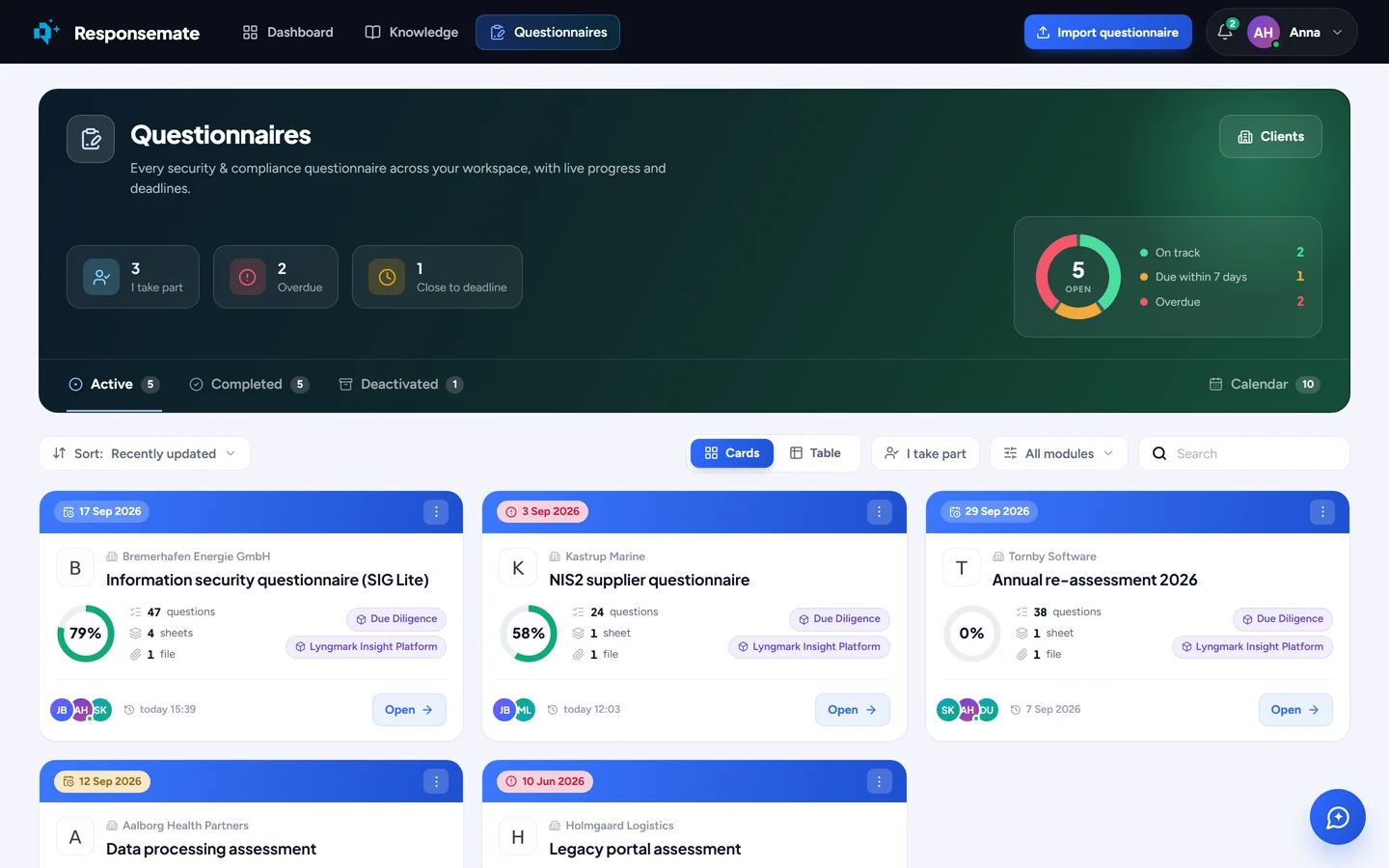
Active, completed and parked questionnaires with progress, deadline and team on each card, a deadline ring that shows what is on track, due this week or overdue, and a calendar one tab away.
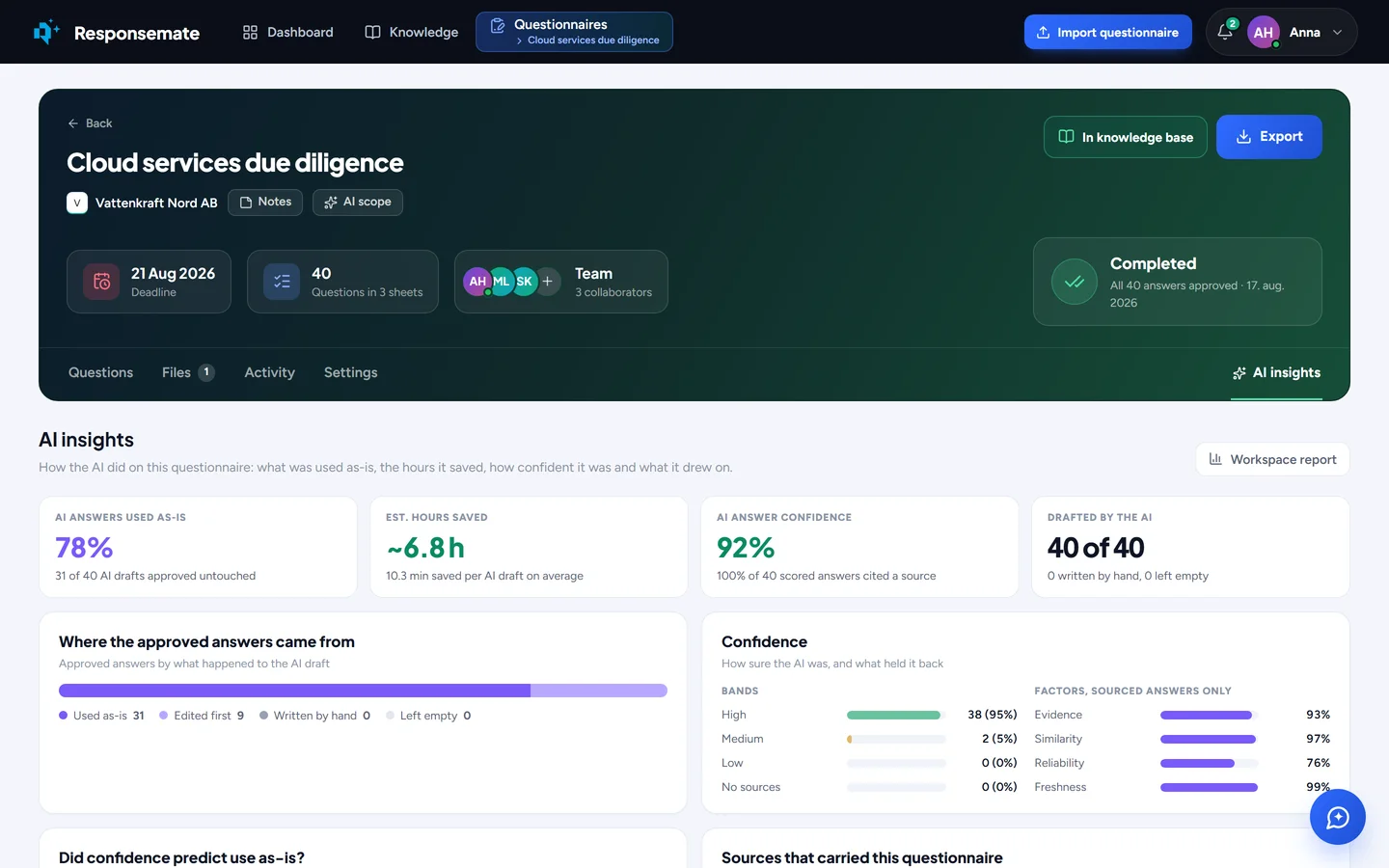
The AI insights tab on a questionnaire.
Related