Everything Responsemate does to answer security questionnaires
76 features, grouped the way you meet them in the product. Start with the area you spend most of your day in, or bring one of your own questionnaires to a demo and watch them work on your data. The product itself is in English; questionnaires and sources can be in any language.
Questionnaires
From the file a customer sends you to approved answers in their own layout.
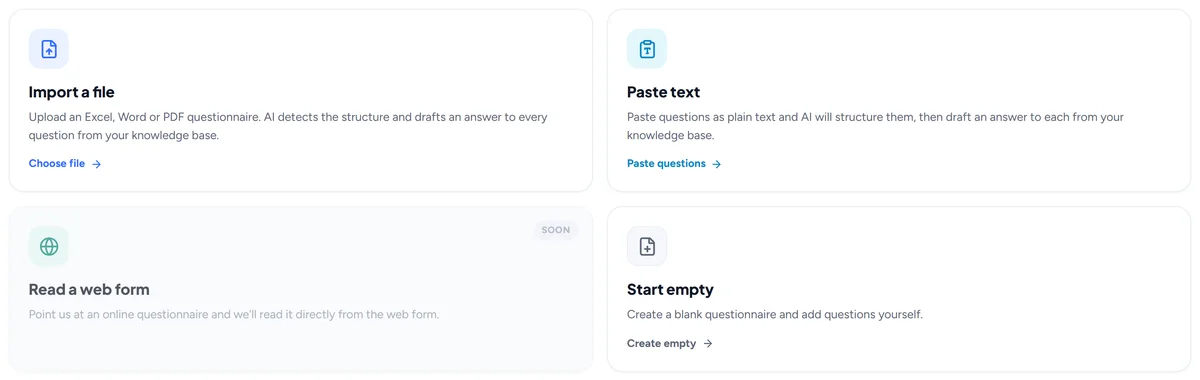
Import any questionnaire
Upload Excel or Word, paste text, read a web form, or start empty. The AI reads the file and fills in the import form for you.
Click Import questionnaire, drop the Excel or Word file the customer sent, paste text, read a web form from its link, or start empty. The AI reads the file, proposes the title, client and deadline, finds the question and answer columns on every sheet and fills in the import form; you check it and press Import. The questionnaire is ready in the customer's own layout.
For example A customer sends a 300-question workbook with four sheets: the import form is filled in for you, and the AI starts drafting answers as soon as you confirm.
Read a web form (beta)
Paste the link to a public Google Form, Microsoft Form or web page and the questions are read from it. A form that needs a sign-in is read from a saved page.
Choose Read a web form in the import wizard and paste the link. A public Google Form or Microsoft Form is read question by question, with its answer options; any other page is read the way you see it and the AI picks out the questions. When a portal asks for a sign-in, open it in your browser, save the page and upload the saved file instead. From there it is the ordinary import: the form is filled in for you and the AI drafts every answer. This is a beta, so tell us about a form it could not read.
For example A customer sends a link to their security questionnaire in Microsoft Forms: paste it, check the questions it found, and the drafting starts.
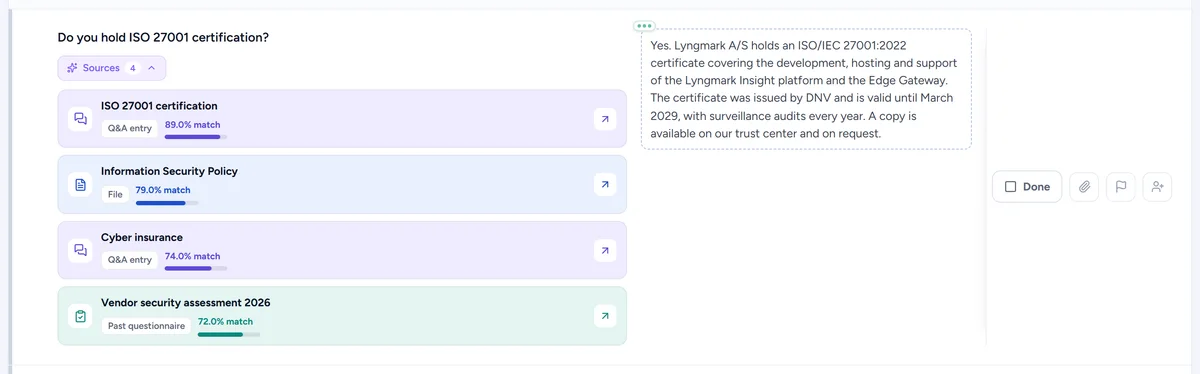
AI-drafted answers with their sources
Every question gets a draft from your knowledge base, with the sources it used, ready to approve or edit.
As soon as a questionnaire is imported, the AI drafts an answer for every question from your knowledge base: Q&A entries, files, links and past questionnaires. Each draft shows the sources it used, so you can check it, edit it or approve it as it is. Drafts arrive one by one while you work.
For example "Is customer data encrypted at rest?" is answered from your encryption policy and the Q&A entry you approved last quarter, both listed under the draft.
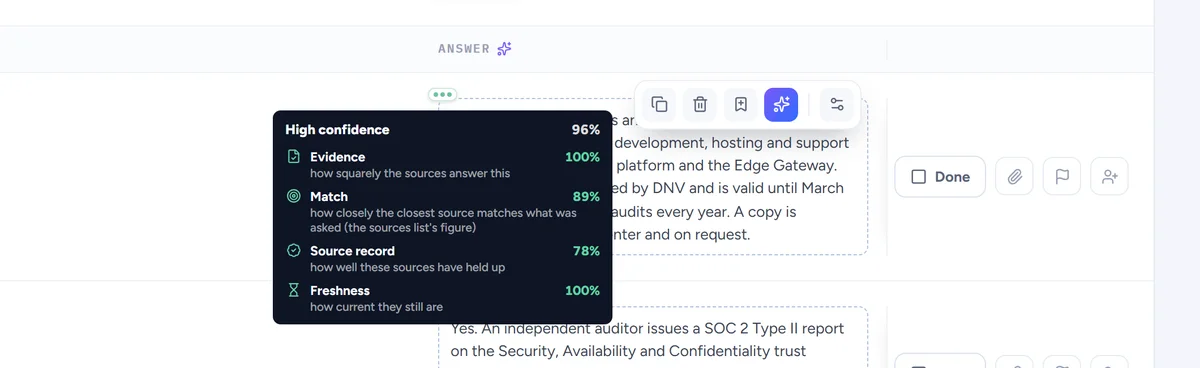
Confidence on every draft
High, Medium or Low with the reasoning: how squarely the sources answer, how well they match, how they held up, how fresh they are.
Every AI draft carries a confidence: High, Medium or Low, with the reasoning. It weighs how squarely the sources answer the question, how well they match it, how earlier drafts from the same sources held up under review, and how fresh the sources are. Sort by confidence to review the weakest drafts first.
For example A Low draft says its only source is a two-year-old policy that half answers the question: you know to write that one yourself.
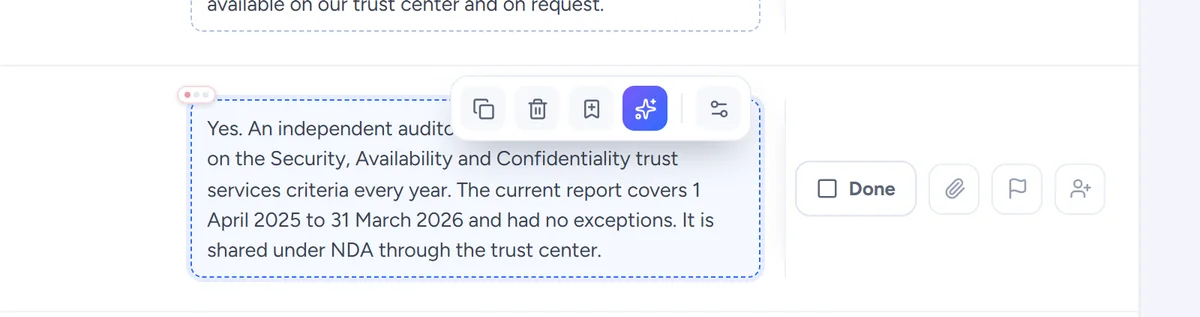
AI tools on every cell
Validate, improve or shorten an answer, explain the question or find similar ones, from the cell or in the AI side panel.
Each answer cell has a small AI toolbar: validate the answer against your sources, improve or shorten it, explain what the question is asking, or find similar questions you have answered before. The same tools live in the AI side panel, where you can ask for a rewrite in your own words.
For example The customer wants every answer under 50 words: press Shorten on the long ones and keep the meaning.
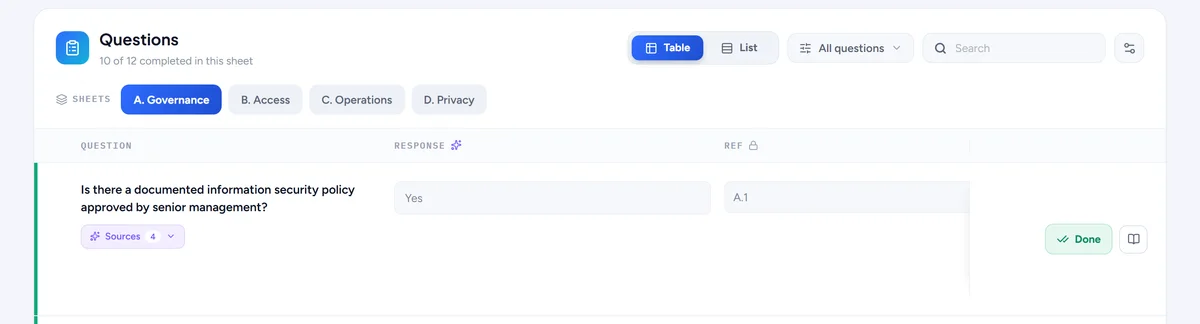
Multi-sheet workbooks
Every sheet of the customer's Excel file, each loading on its own, with settings for which sheets and columns the AI fills.
A questionnaire keeps every sheet of the customer's workbook. Sheets load one at a time, the one you are looking at first, and each sheet has settings for which columns are shown, which the AI fills and whether the sheet is part of the AI run at all.
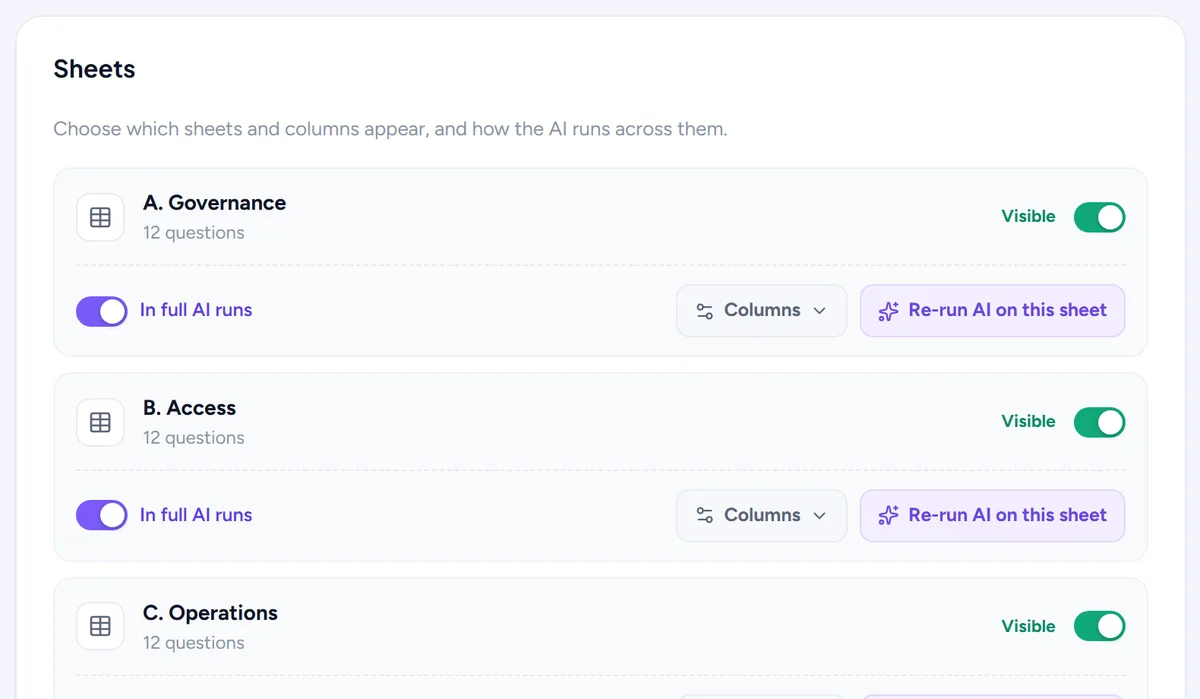
Cell and column settings
Set a cell's type, who may edit it and whether the AI targets it, with an instruction and a priority per column.
Per column you set who may edit it, whether the AI targets it, an instruction the AI follows for that column and a priority. Per cell you set the type: free text, a dropdown with fixed choices, a yes or no, or read-only text that stays as it came.
For example The Comments column gets the instruction "one sentence, refer to the policy by name", and the Compliant column becomes a Yes / No / Partial dropdown.
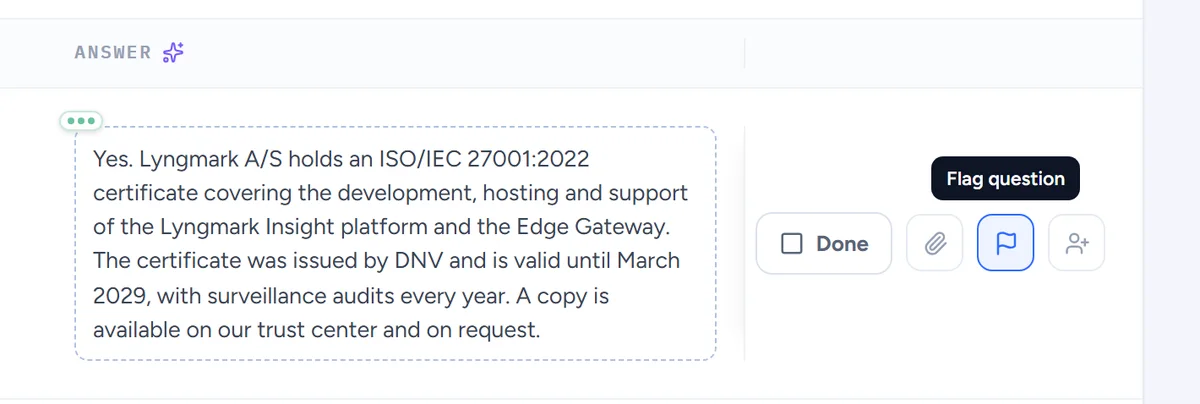
Approve, flag and assign
Approve answers one by one or all at once, flag a question with a reason, assign it to a colleague, reopen it when needed.
Approve an answer when it is right, one by one or all at once. Flag a question with a reason so a colleague sees what is wrong, assign it to the person who knows, and reopen an approved answer when the customer comes back with a follow-up.
For example The legal question goes to your counsel with a flag saying "check the retention period"; the rest you approve in bulk.
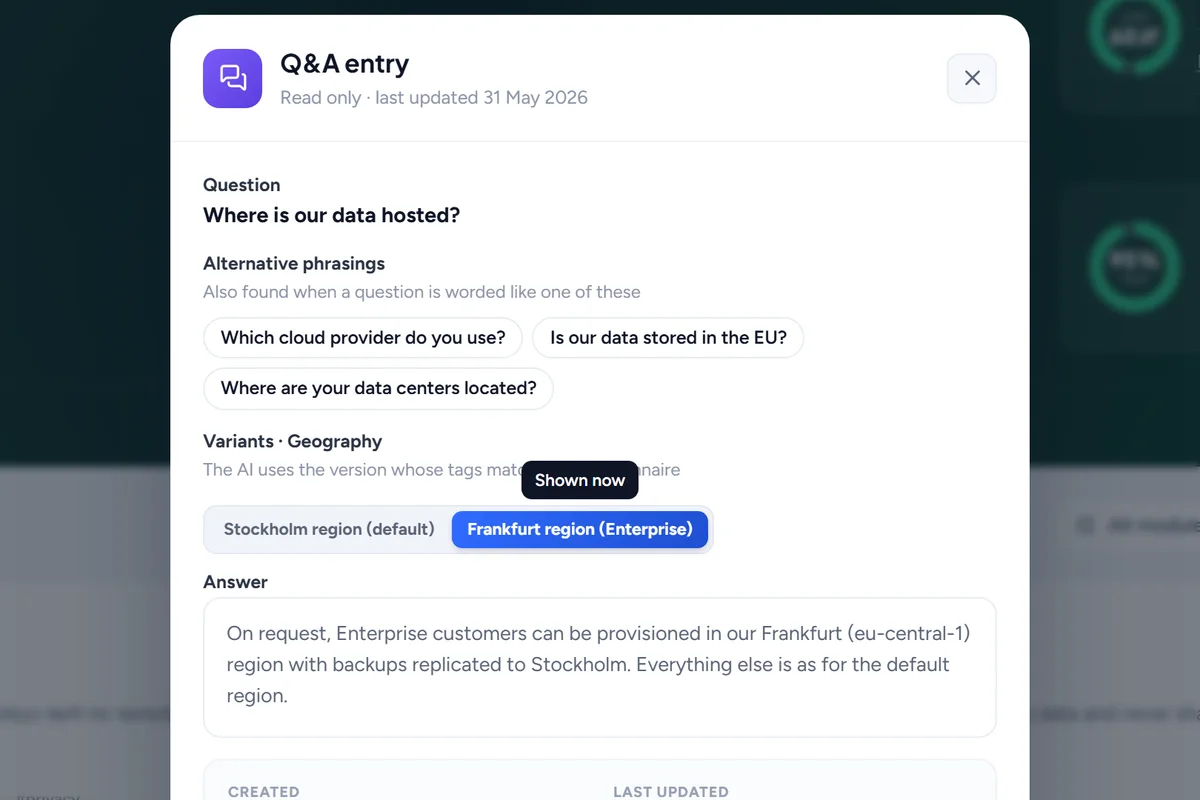
Pick the answer variant that fits
When a Q&A entry keeps several answers, choose the one for this customer and apply it everywhere the question is asked.
When a Q&A entry keeps several answers, by region, segment, deployment, product or framework, a question that matches it lets you pick the variant this customer needs, and apply it everywhere the same question is asked in the questionnaire.
For example The EU customer gets the EU data-residency variant on all twelve questions that touch it, in one click.
Write questionnaires by hand
Add questions yourself when there is no file, or import into an empty questionnaire later.
No file? Start an empty questionnaire and add questions yourself, sheet by sheet. You can import a file into it later and the AI drafts answers as usual.
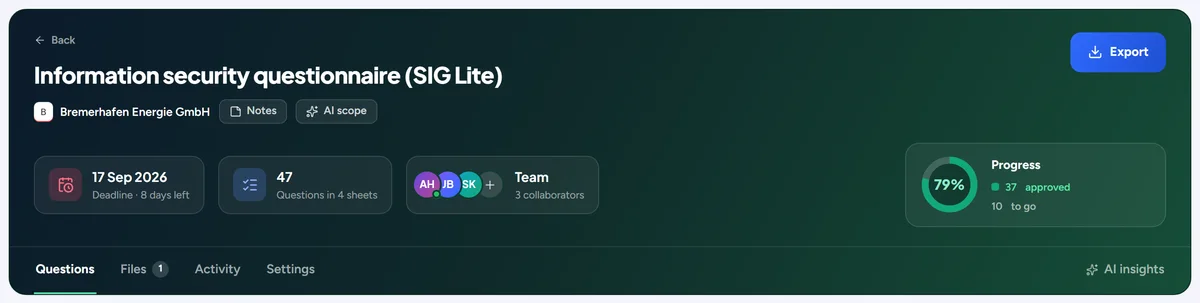
Deadlines, team and progress
A deadline, collaborators and assignments on each questionnaire, with progress that counts approvals.
Each questionnaire has a deadline, an owner, collaborators and per-question assignments. Progress counts approved answers, not drafts, so the bar says how much is really done. Deadlines feed the dashboard and the calendar.
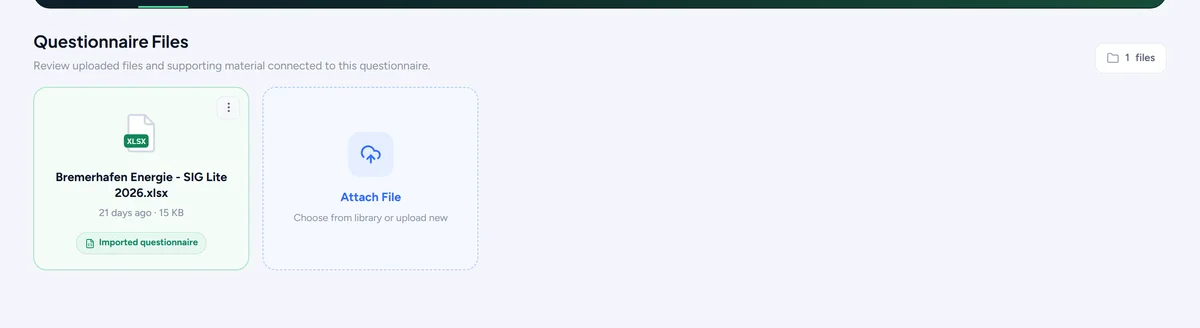
Files and notes on the questionnaire
Attach the customer's files, keep personal notes next to the questions and a shared note for the team.
Attach the customer's own files to the questionnaire, keep a shared note the whole team sees, and personal notes only you see. Individual questions can carry attachments too, and the AI suggests which of your files belong with an answer.
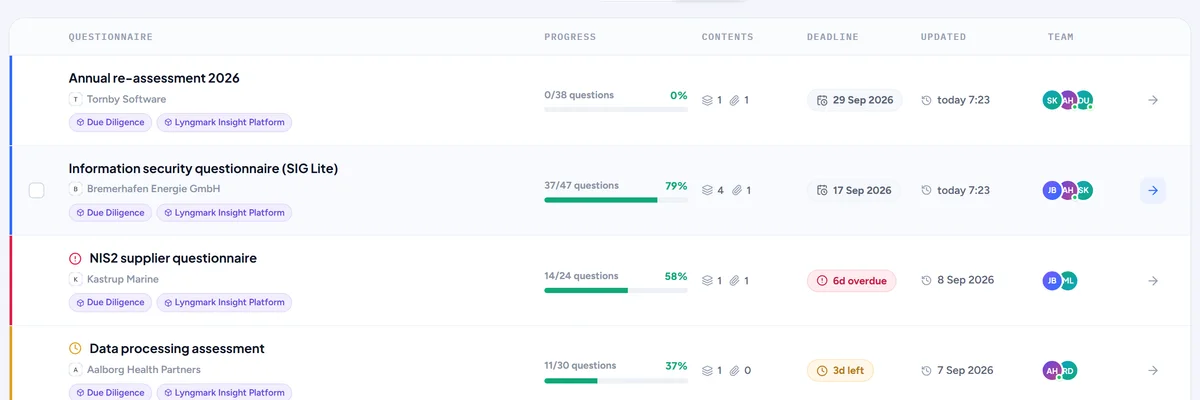
Bulk actions on the list
Select several questionnaires and set the deadline, approve all, deactivate, change collaborators, modules and tags, or delete.
Select several questionnaires on the list and act on all of them at once: set a deadline, approve everything, deactivate, change collaborators, modules or tags, or delete.
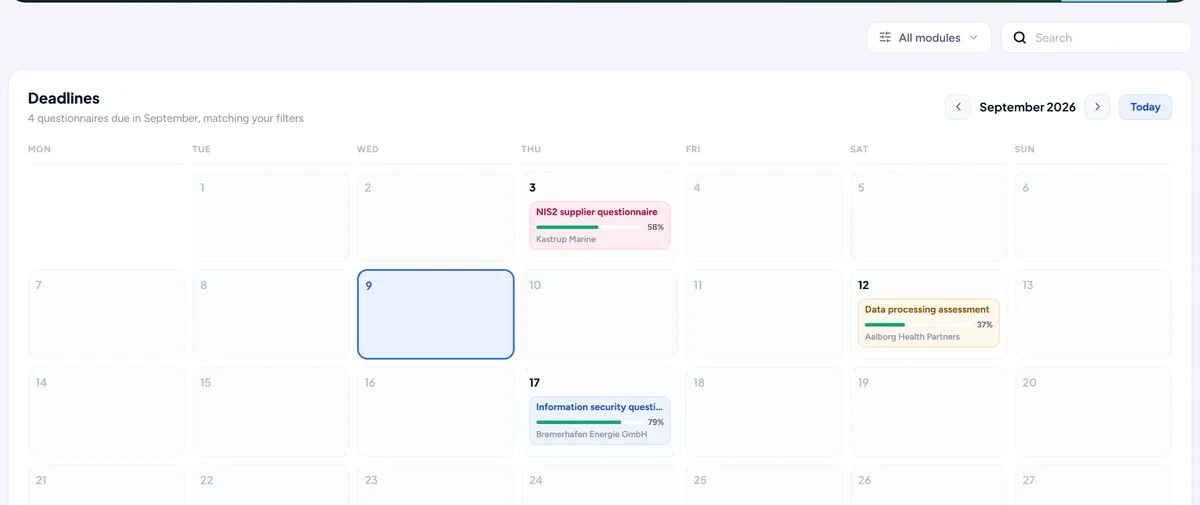
Calendar of deadlines
A month view of when each open questionnaire is due, one tab away from the list.
The Calendar tab of the questionnaires page shows a month with every open questionnaire on the day it is due, colour-coded by how it is going. Click a day to open what lands then.
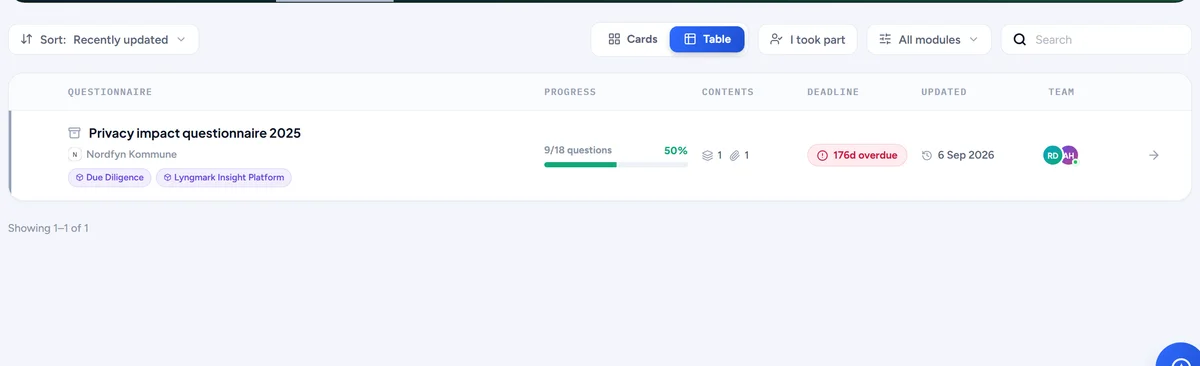
Deactivate and reactivate
Park a questionnaire you are not working on. It leaves every count and the AI's memory until you bring it back.
A questionnaire you are not working on can be parked. It leaves the counts, the dashboard and the AI's memory, so its answers do not feed new drafts, until you bring it back exactly as it was.
For example A prospect goes quiet: deactivate their questionnaire so its half-finished answers stop influencing the AI, and reactivate it when they return.
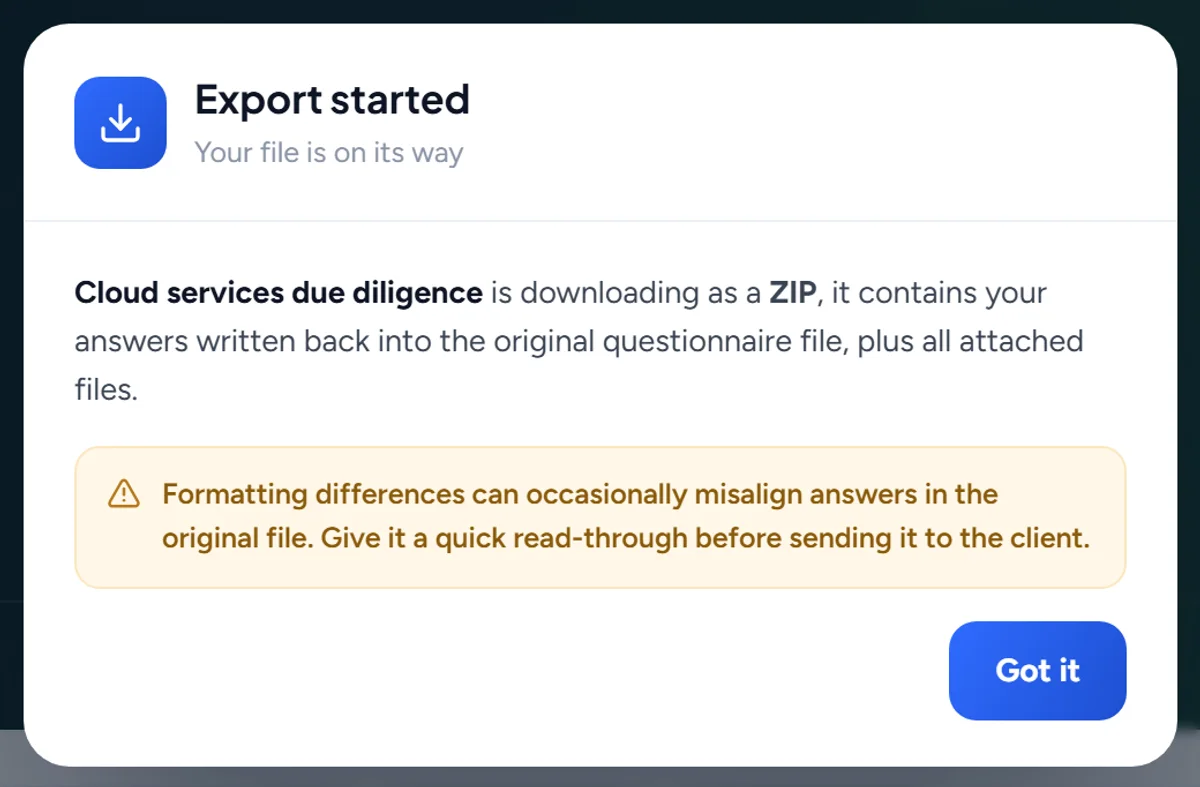
Export to Excel or Word
Download the finished questionnaire in the customer's own layout, as the Excel or Word file they sent you.
When the answers are approved, download the questionnaire as the file the customer sent, with every sheet and column in place and the answers filled in, or as a Word document. Dropdown answers map back to the customer's own choices.
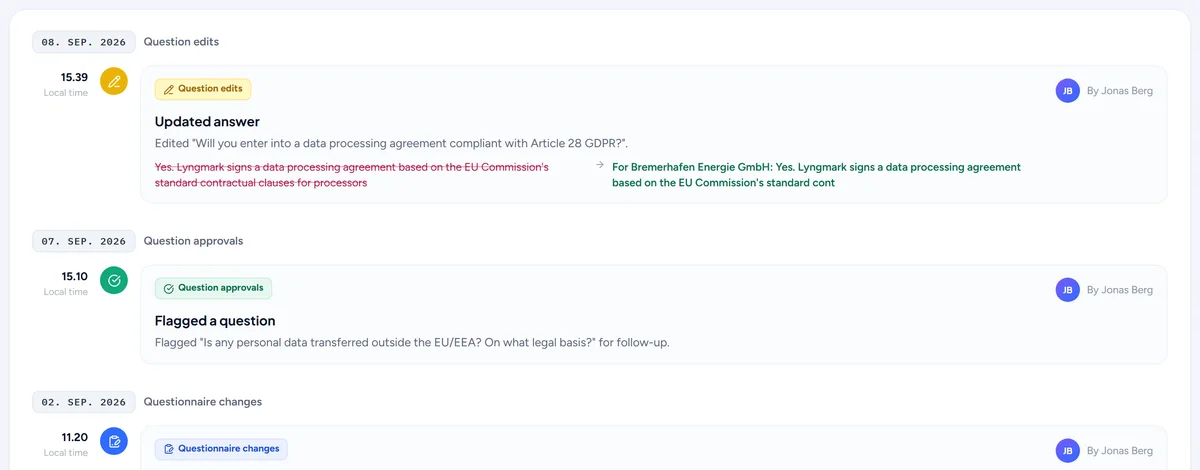
Every change on record
Each questionnaire has its own activity tab: who approved, edited, imported or exported what, and when.
Each questionnaire has an Activity tab: who imported, approved, edited, flagged, assigned or exported what, and when, including what the AI drafted and what Responsemate did on its own. The same entries appear in the workspace-wide activity history.
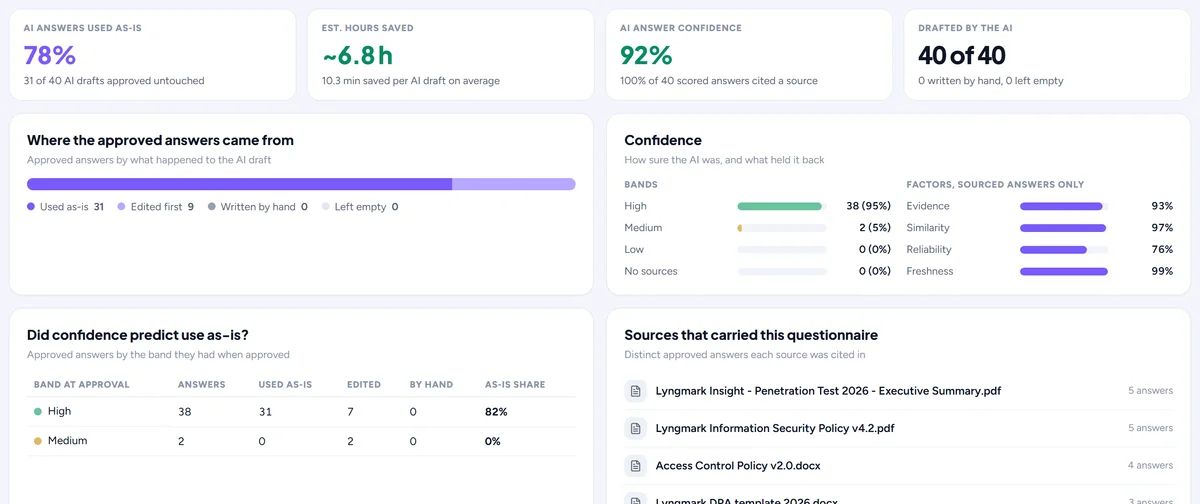
AI insights per questionnaire
An AI tab on each questionnaire: drafts kept as-is, edited or replaced, confidence over time and the sources that carried the answers.
The AI tab on a questionnaire shows how the AI did on that questionnaire alone: how many drafts were approved as they came, edited or replaced, the confidence over time, which sources carried the answers and how the approval rate moved as the team worked through it.

See who else is in the questionnaire
The list and the team tile show who is in a questionnaire right now, and a question someone else is editing says so and waits for them.
The questionnaire list says who is in each questionnaire right now, and inside one the Team tile rings their avatars and names them, with the tab they are on. A question someone else is editing shows "Anna is editing this" and its fields wait for her; when she leaves, they open again, or you can choose Edit anyway. Close the page or switch away and you drop off within a minute, so nothing shows people who are not actually there.
For example Anna is on question 12 while you scroll the same sheet. The row says "Anna is editing this", so you take question 13.
Knowledge
Everything the AI answers from, kept fresh and tidy.
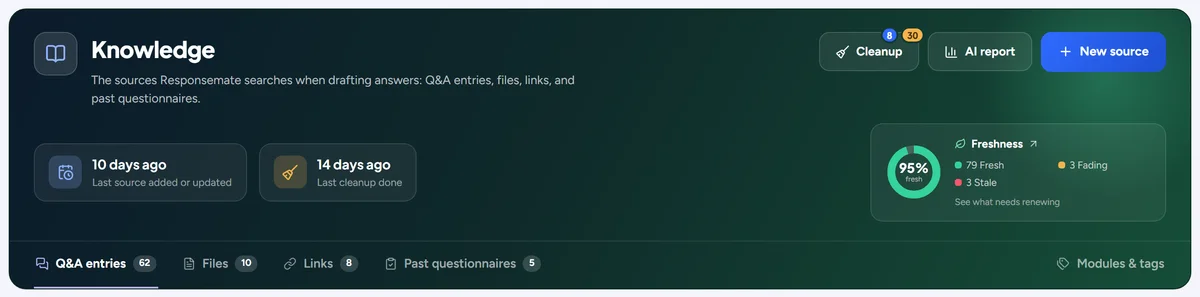
One knowledge base
Q&A entries, files and links on one page, filed by module and tag.
The Knowledge page holds everything the AI answers from: Q&A entries, files, links and past questionnaires, each filed by module and tag, searchable and filterable on one page. Every entry shows who changed it last and when its content changed.

Alternative phrasings
Give a Q&A entry the other ways customers ask, so the AI matches more questions.
A Q&A entry can carry the other ways customers ask the same thing. The AI matches a question against the entry's question and all of its phrasings, so one well-kept entry answers many differently worded questions.
For example "Do you encrypt data at rest?", "Is stored data encrypted?" and "Which encryption standard protects stored data?" all land on the same entry.
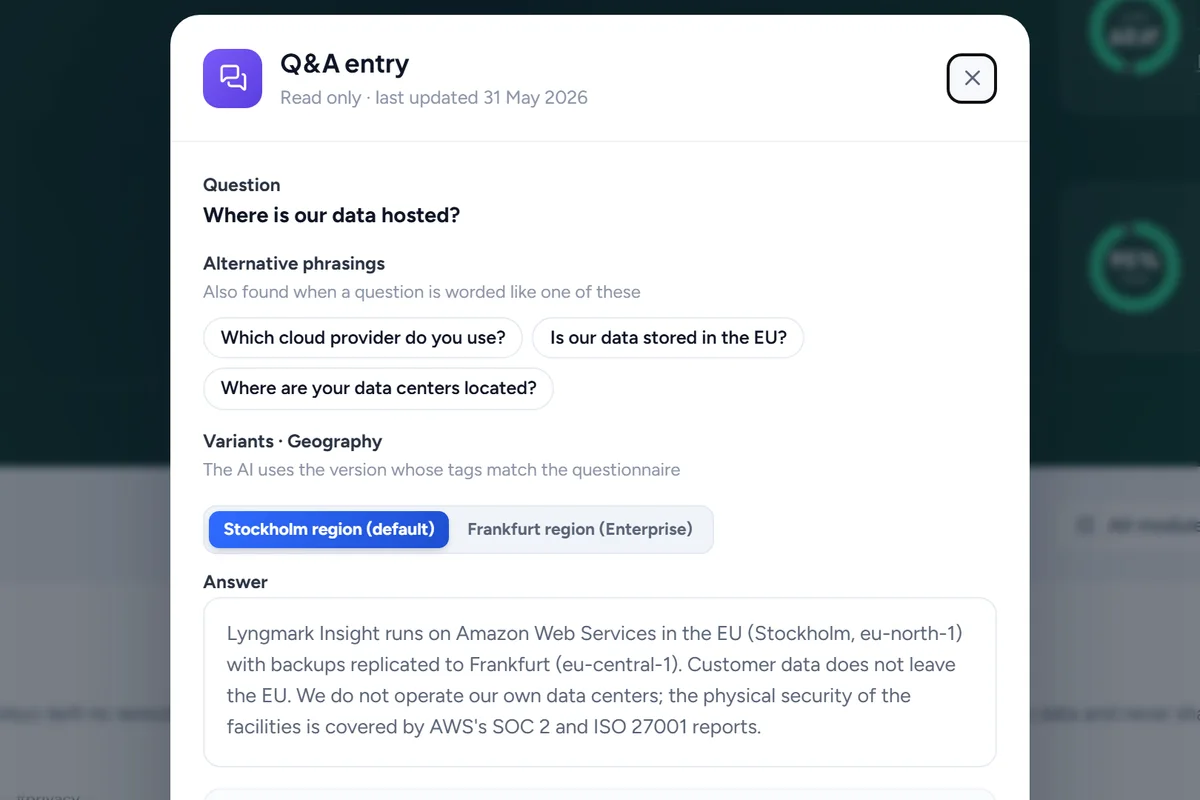
Several answers on one entry
Keep answer variants on a Q&A entry, by region, segment, deployment, product or framework, and pick one per questionnaire.
One Q&A entry can keep several answers side by side, by region, customer segment, deployment model, product or framework. The AI picks the variant that matches the questionnaire, and you can switch it per questionnaire.
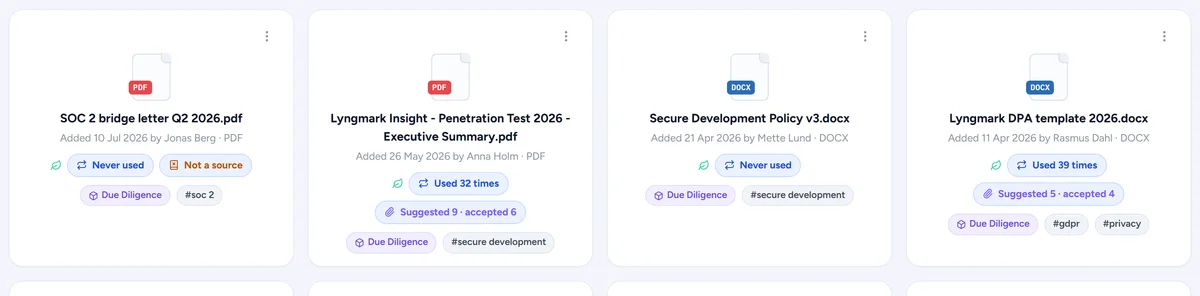
Files and links, read automatically
Upload files or add web pages. They are read, split and indexed on their own, and a link can be rescanned any time.
Upload a file or add a web address and Responsemate reads it, splits it into sections, summarises it and indexes it for the AI, all on its own. A link can be rescanned any time to pick up changes, and a file shows when it was processed.
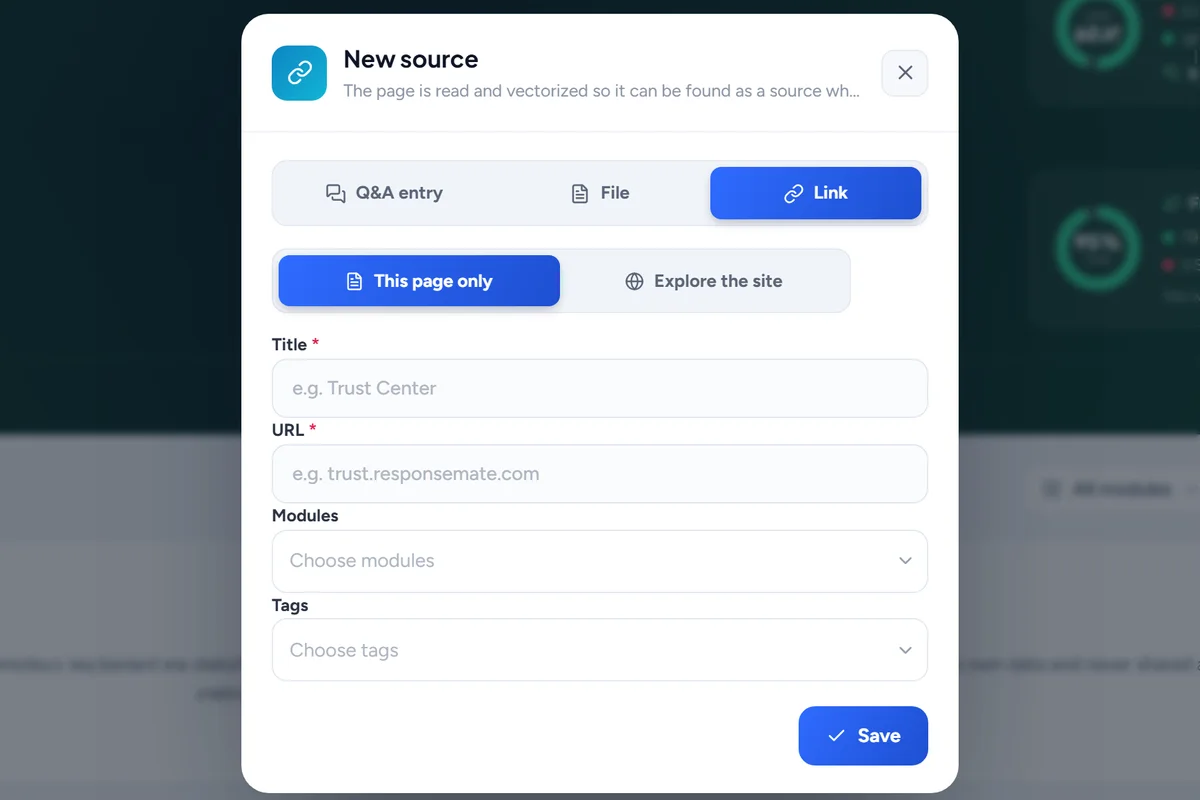
Explore a website for sources
Give one address and the AI walks the site, proposing the pages worth adding as sources.
Give one address, such as your trust centre or documentation site, and the AI walks the site, proposing the pages worth adding as sources with a line on what each covers. Tick the ones you want.

API documentation as a source
Import an OpenAPI or Swagger file and the AI answers from your API documentation too.
Import an OpenAPI or Swagger file, or its address, and the AI answers technical questions from your API documentation: endpoints, authentication, data formats.
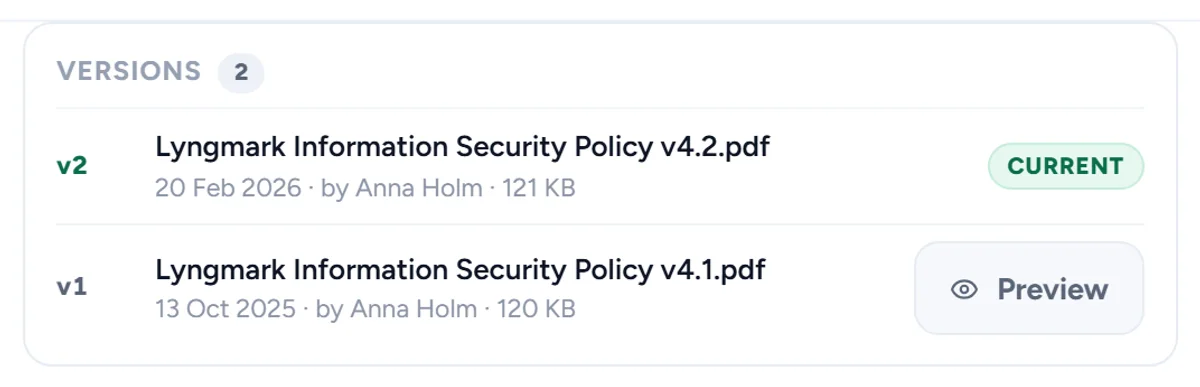
Replace a file, keep its history
Upload a new version of a file. Old answers still point at the version they used; new answers use the new one.
Upload a new version of a file and the old one is archived, not deleted. Answers that used the old version still point at it; new answers use the new one. Every file shows who uploaded it and its full version history.
For example The information security policy gets its yearly revision: upload version 4, and last year's approved answers still show they were based on version 3.
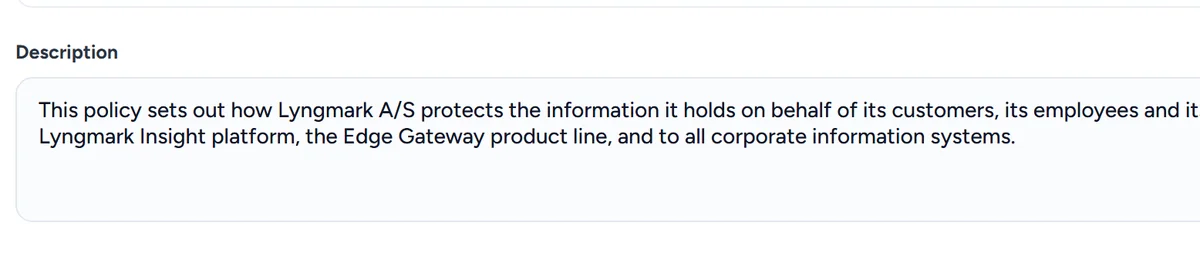
AI-written descriptions and dates
Let the AI describe a file or link, suggest its expiration date and say what kind of document it is.
When a file or link is added, the AI writes a short description, says what kind of document it is and suggests an expiration date from its contents. You can accept or change each.
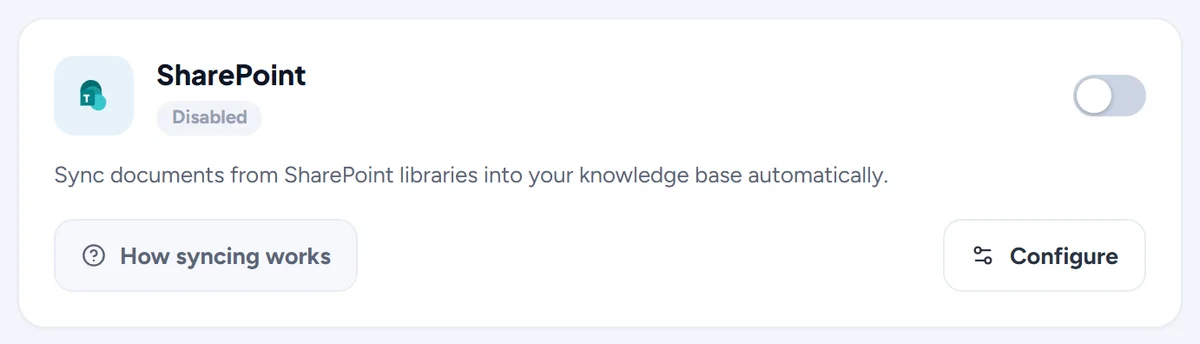
SharePoint files
Connect SharePoint to import files, keep them synced, check a file for a newer or moved version, replace it with any library file, and see what you have not added yet.
Connect SharePoint on the Account page and pick the libraries to sync. Files are imported and kept current on their own, and any file in your knowledge base can be checked against SharePoint for a newer or moved version. The cleanup page lists library files you have not added yet.
For example A colleague updates the DPA template in SharePoint: within the hour Responsemate holds the new version, and old answers still show which version they used.
Freshness
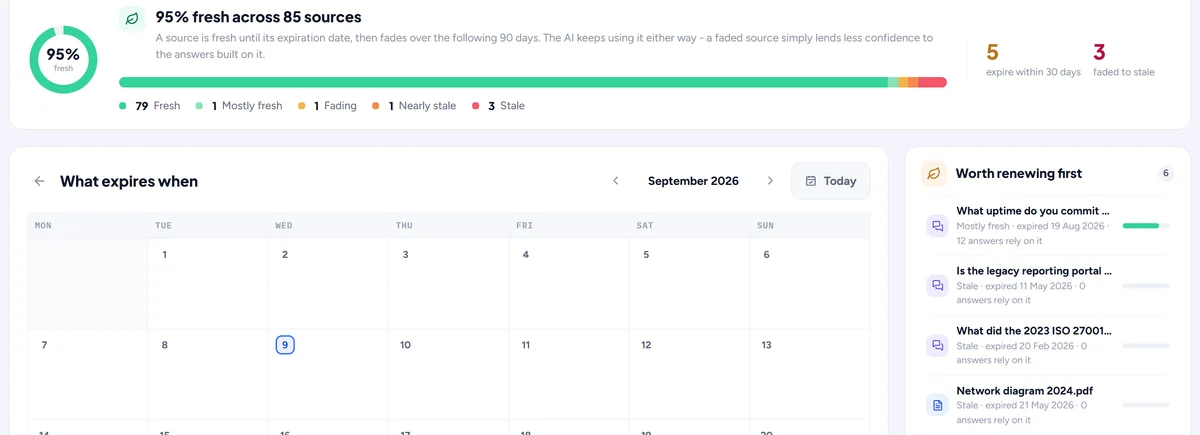
Give sources an expiration date. The AI keeps using them, but you see when they fade and what to renew first.
Give any Q&A entry, file or link an expiration date. The AI keeps using it, but its confidence falls as the source ages, and the Freshness view shows what fades when and what to renew first. Renewing is one click.
Cleanup
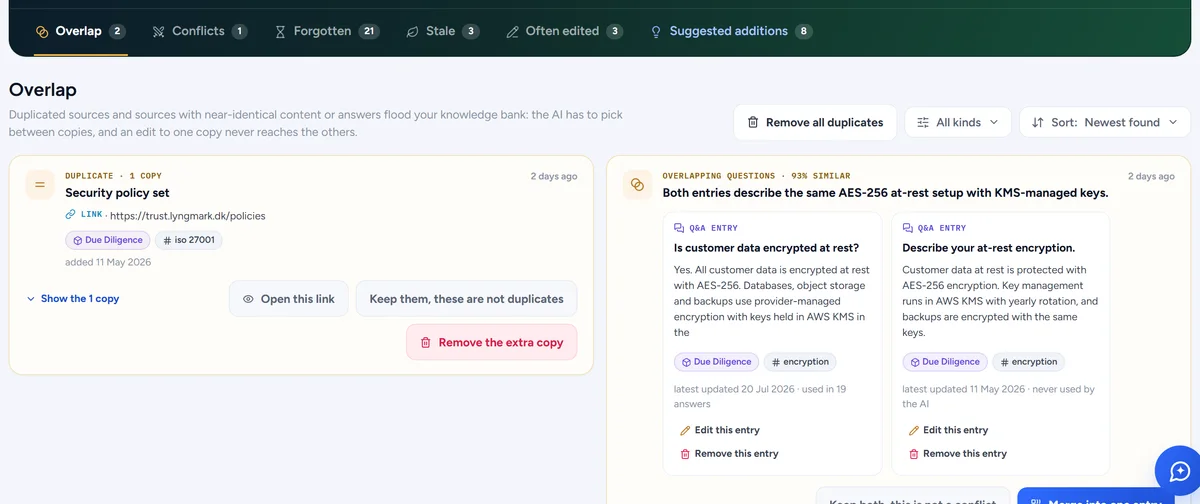
Duplicates, overlaps, conflicts, forgotten and stale sources, and sources whose answers usually get edited, with merge, keep and remove.
A nightly scan finds duplicates, overlapping entries, contradictions, forgotten and stale sources, and sources whose answers usually get edited. The cleanup page lets you merge two entries (choosing which stays), keep both, or remove one, with a preview of what changes.
Suggested additions
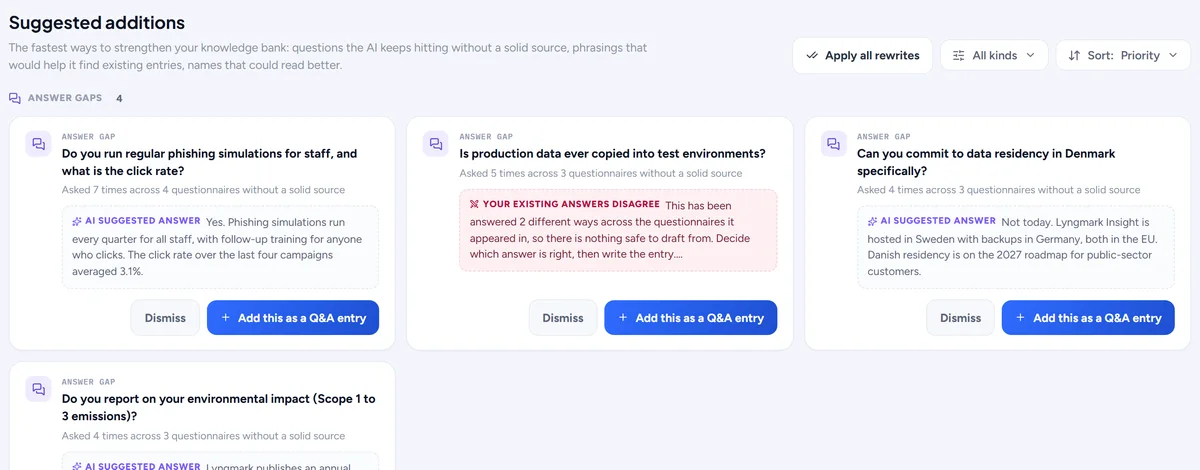
Gaps in your library found from the questions you keep getting, with a drafted answer to accept.
From the questions you keep getting without a reusable answer, Responsemate proposes new Q&A entries with a drafted answer. Accept one and it lands in the library, edit it first, or dismiss it.
Text improvements
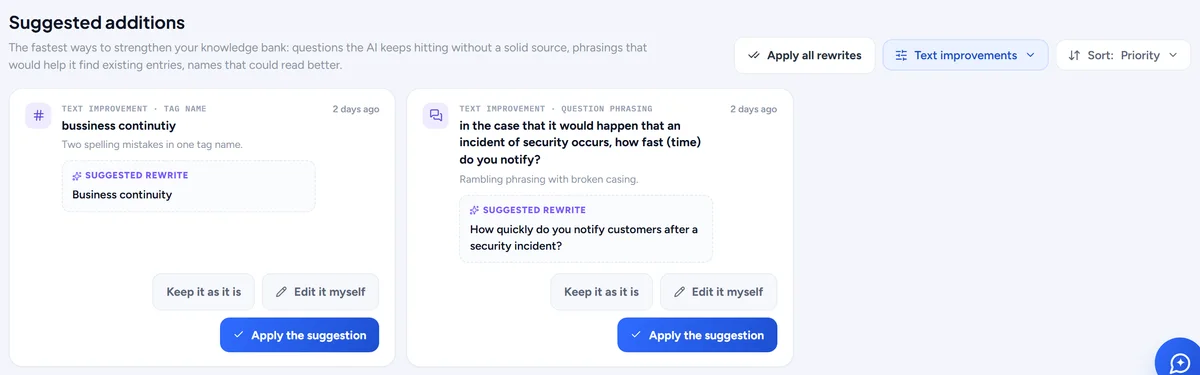
Clearer names for modules and tags and better-worded Q&A questions, suggested by the AI and applied in one click.
The AI suggests clearer names for modules and tags and better-worded Q&A questions, always phrased as questions. Apply one in a click, edit it yourself, or leave it.
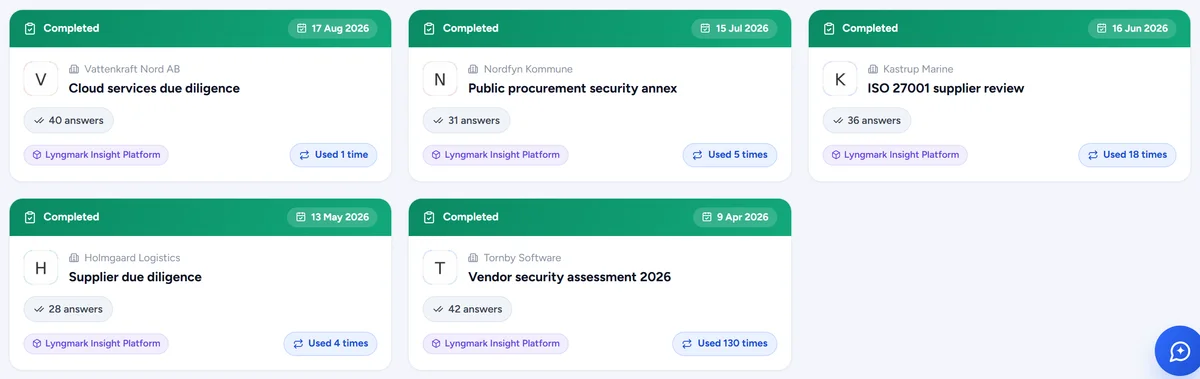
Past questionnaires as knowledge
Completed questionnaires feed future answers. Exclude any answer you would rather the AI forgot.
Every approved answer in a completed questionnaire feeds future drafts. If an answer was right for one customer only, exclude it from the knowledge base and the AI forgets it.
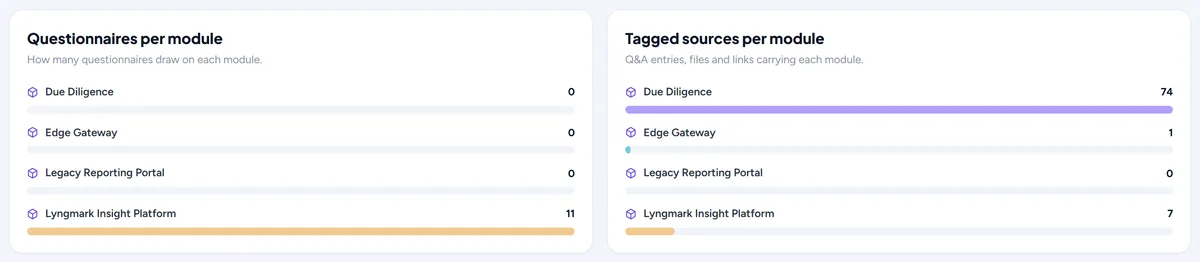
Modules and tags
File your knowledge by module and tag, merge duplicates, and see what nobody uses.
File your knowledge by module (a product, a service, a region) and tag within it. The taxonomy tab shows what each module and tag holds, merges duplicates and points out what nobody uses.
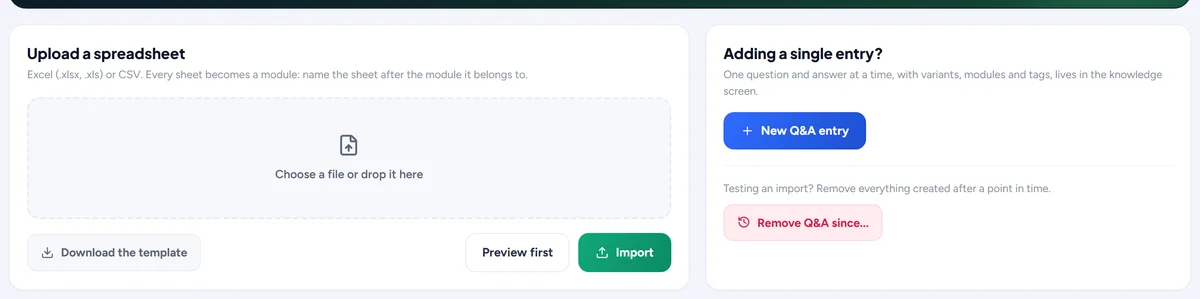
Bulk import Q&A from Excel
Upload a spreadsheet of questions and answers with a preview first, and undo the whole import if it went wrong.
Upload a spreadsheet of questions and answers. You see a preview with the columns mapped before anything is written, and if the import went wrong you can undo the whole batch.
Export the library
Download every Q&A entry as one Excel workbook.
Download every Q&A entry, with its phrasings, variants, module and tags, as one Excel workbook, for a review outside Responsemate or a backup. The Export Q&A button sits in the header of the Knowledge page.
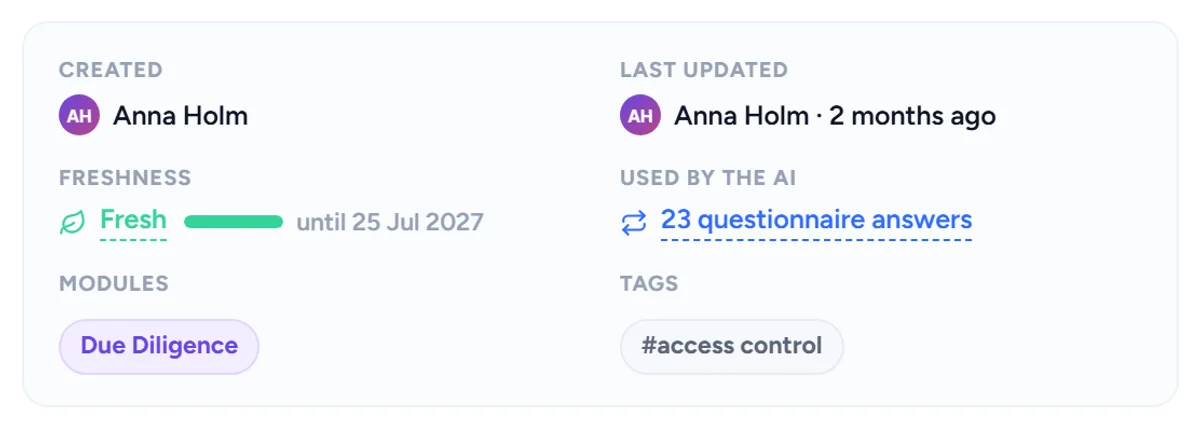
Where a source has been used
Open any entry, file or link and see which answers drew on it, and how often.
Open any entry, file or link and see which answers drew on it and how often, and, for files, how often the AI suggested it as an attachment and how often that suggestion was accepted.
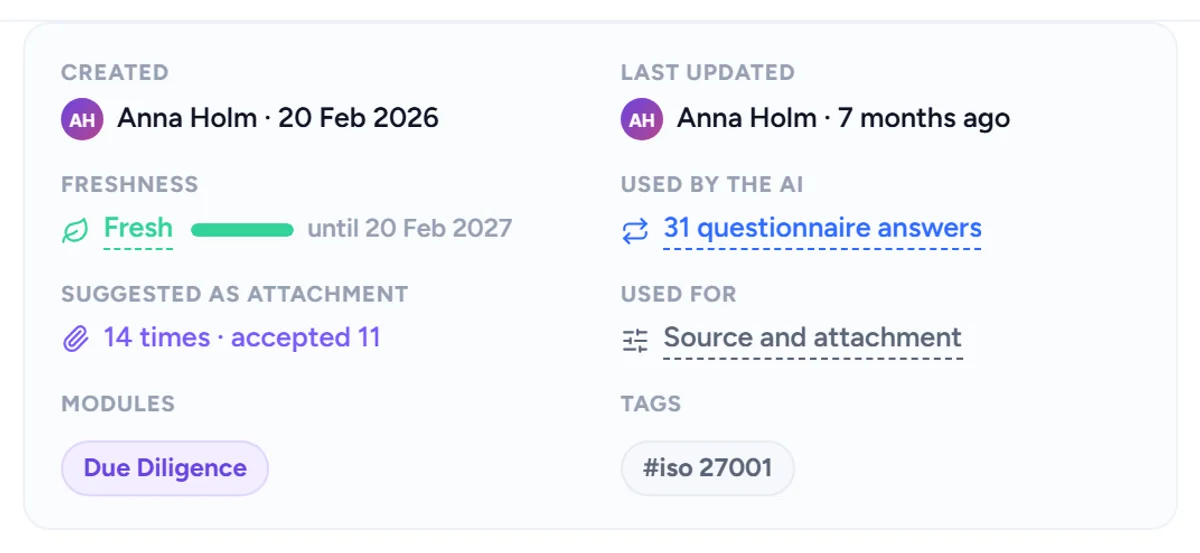
Who uploaded a file, and every version
Each file shows its uploader, when its content changed and a history of its earlier versions.
Every file shows who uploaded it and when its content last changed, and keeps its earlier versions in a history you can open. Replacing a file archives the old version rather than deleting it.
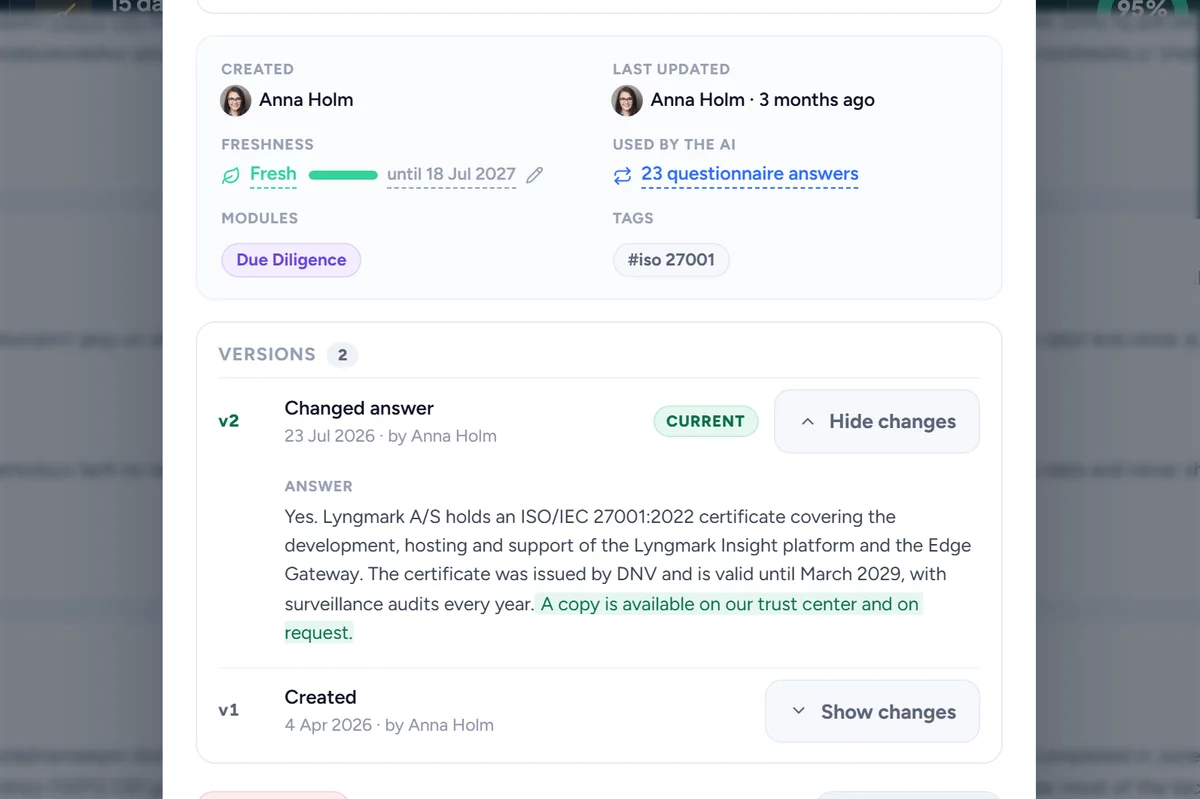
Who wrote a Q&A entry, and every version
Each entry shows who created it and who changed it last, with a history of every version and what changed in each.
Every Q&A entry keeps a version history: who wrote or changed it, when, and through what (the app, the Claude connector, the assistant, an import, a merge). Open an entry and the Versions section shows each version with the words that changed marked. Nothing is restored from it; it is there to trace an answer to its author.
For example An answer in a questionnaire turns out to be wrong: open the entry it came from, see who changed that sentence and when, and ask them.
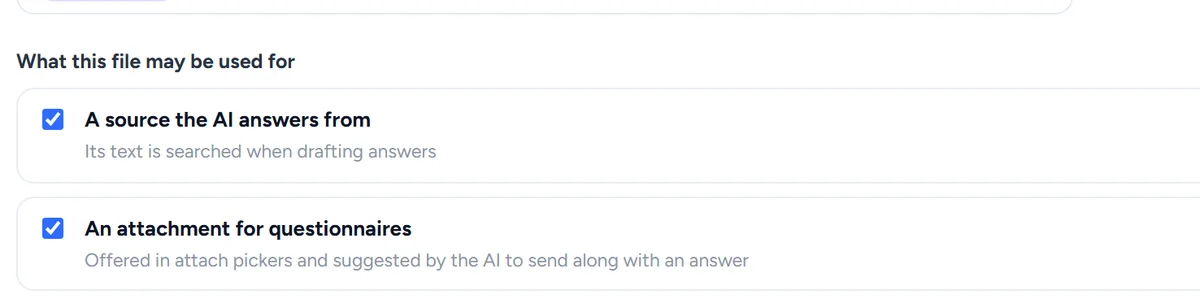
Allow a file as a source, an attachment, or both
Two switches per file: may the AI answer from it, and may it suggest it as evidence for a question.
Each file has two switches: allow it as a source the AI answers from, and allow it as an attachment the AI may suggest for a question. A confidential file can be one without the other.
For example The pen-test report may be attached as evidence but should not feed answers: attachment on, source off.
Search everything
One search box on every page, Ctrl+K away: questionnaires, the questions of the open one, Q&A entries, files, links and clients.
The search button at the top of every page, or Ctrl+K (Cmd+K on a Mac), opens one search box. Type two letters and the matches come grouped: questionnaires, Q&A entries, files and links, clients. On a questionnaire the "This page" scope searches its own questions. Arrow keys move, Enter opens.
AI assistant
On every page. It answers, and it can act, but nothing changes until you confirm.
A side panel on every page
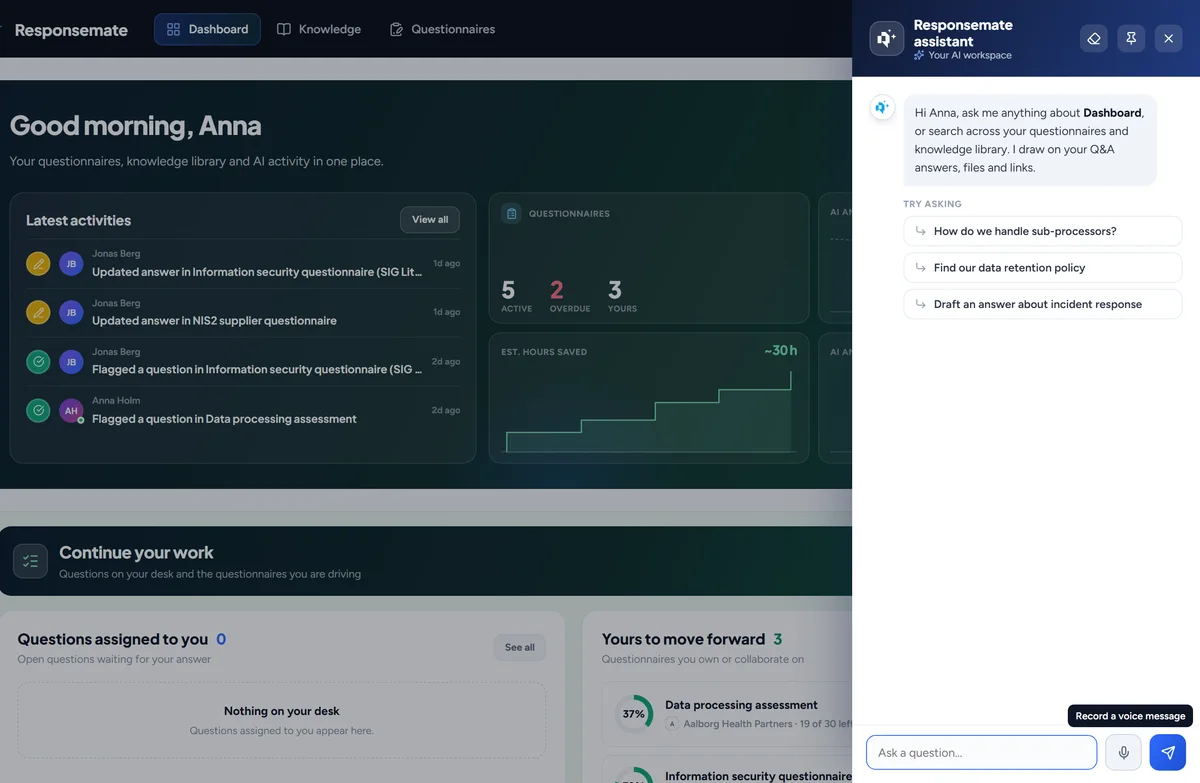
Open the assistant anywhere. It knows which page you are on, sums it up, and answers as it writes.
The assistant button at the bottom right opens a side panel on every page. It knows which page you are on and what is on it, so "sum this up" or "what is overdue here" work without explanation. The conversation follows you between pages.
Answers from your knowledge base
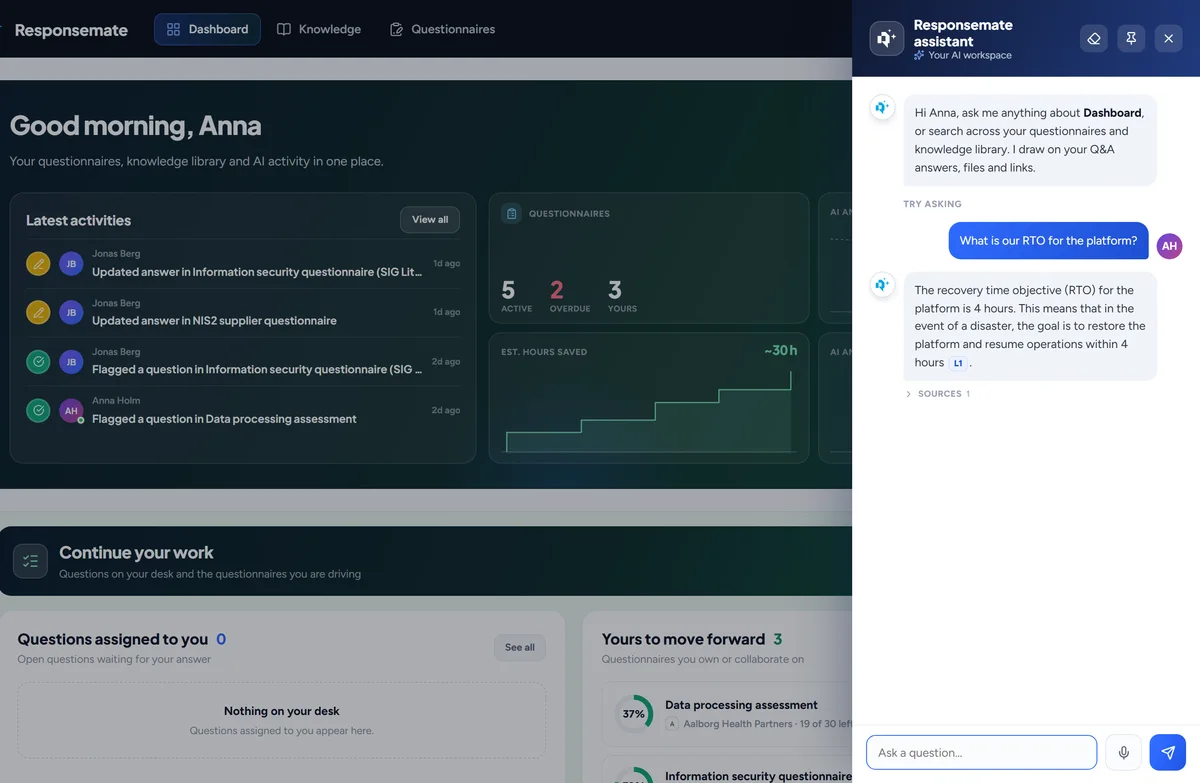
Ask a question and get an answer with the sources it came from, scoped to the open questionnaire or the whole workspace.
Ask a question in your own words and the assistant answers from your Q&A entries, files, links and past questionnaires, listing the sources it used. On a questionnaire it can scope itself to that questionnaire; elsewhere it looks at the whole workspace.
For example "What do we say about subprocessors?" returns the answer with the DPA and the two Q&A entries it came from.
Works on the open questionnaire
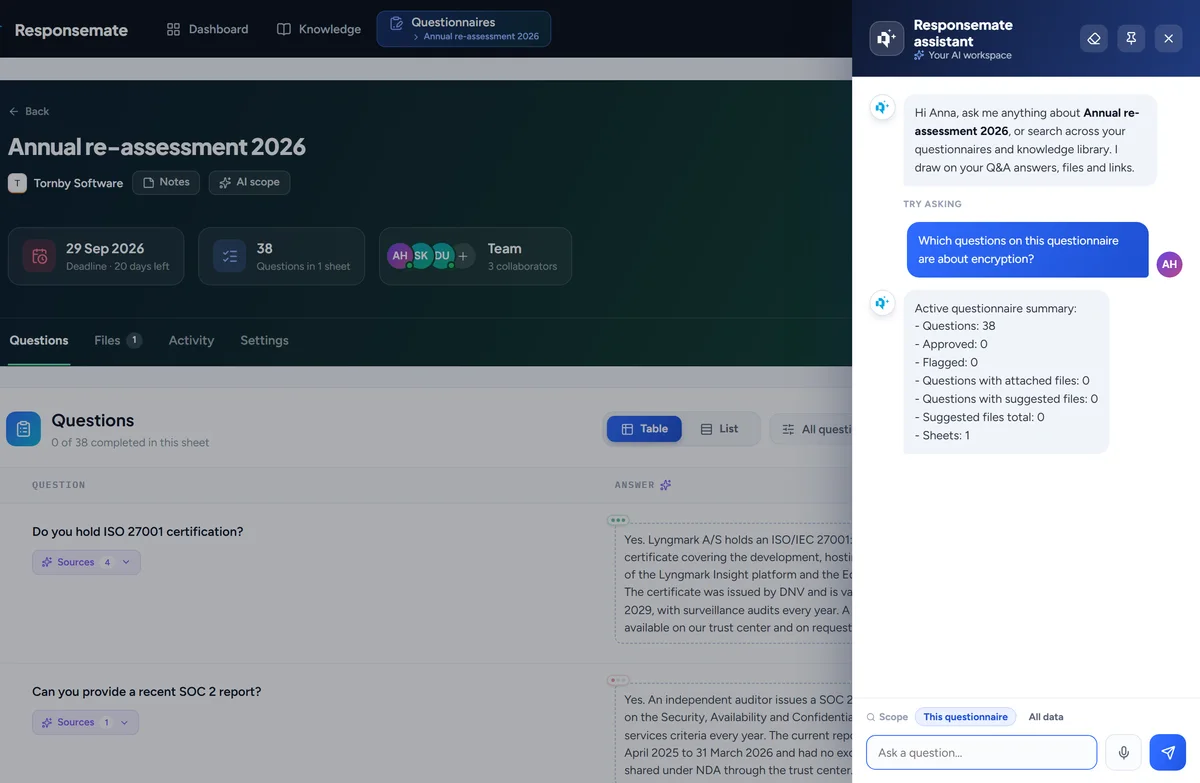
Approve, reopen, flag or assign questions, set the deadline, collaborators or note, clear cells or rerun the AI on them.
On a questionnaire the assistant can approve, reopen, flag or assign questions, set the deadline, collaborators or note, clear cells or rerun the AI on them. Every action is shown as a proposal with a Confirm button.
For example "Assign every question about backups to Maria and flag the ones with low confidence" becomes two proposals you confirm.
Writes and fixes answers in cells
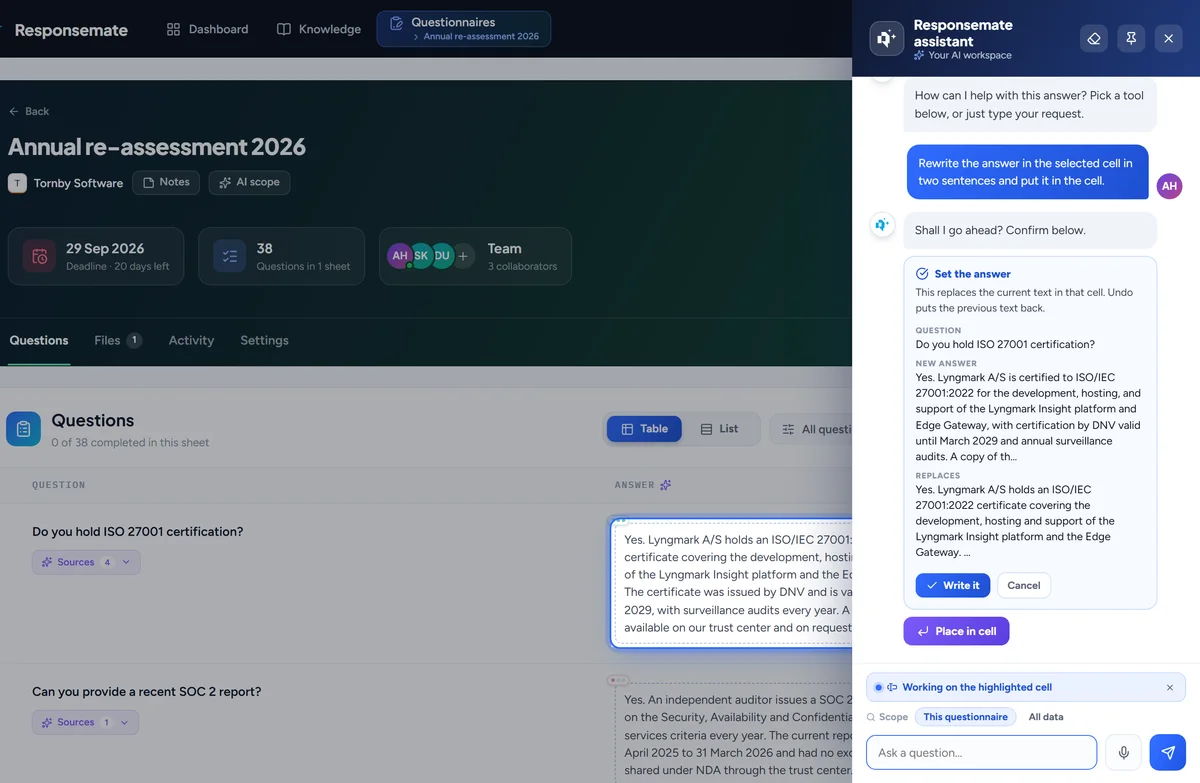
Ask for a draft, an improvement or a rewrite and place it in the cell, or change a cell from text to a dropdown.
Ask for a draft, an improvement or a rewrite of an answer and the assistant places it in the cell, or changes a cell from free text to a dropdown with the choices you give it.
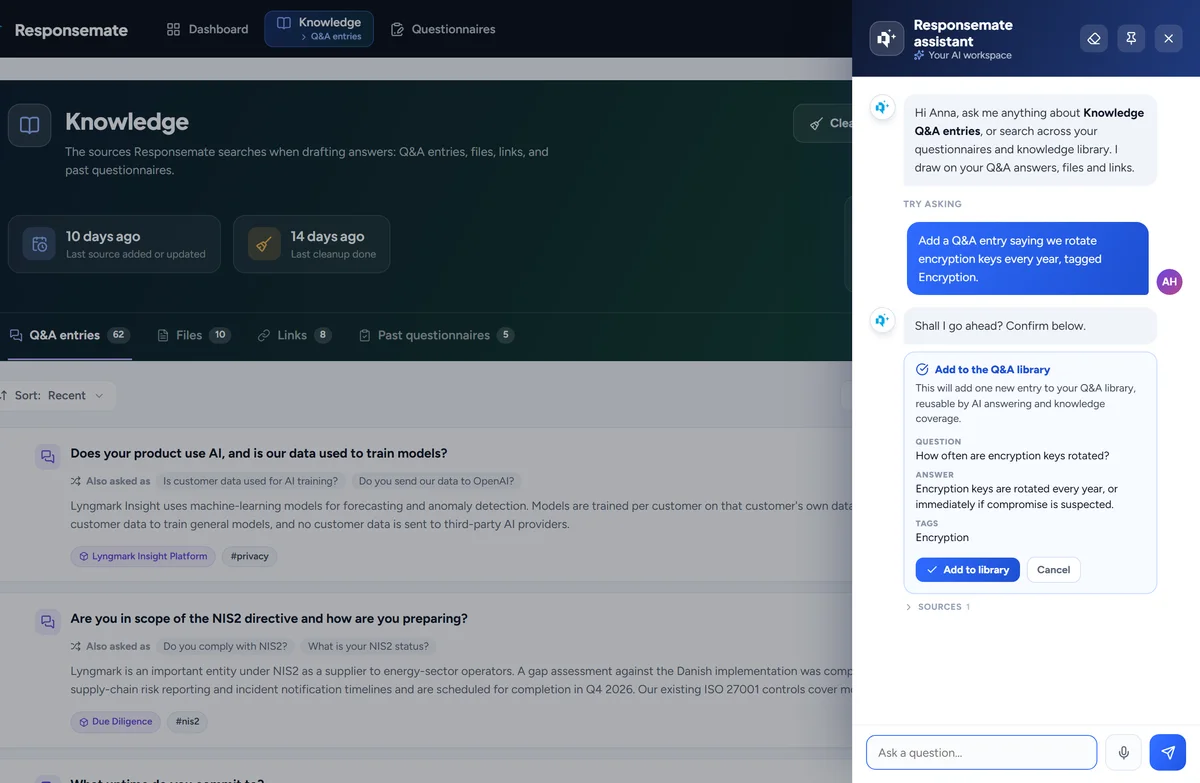
Keeps the knowledge base current
Create, edit or delete Q&A entries, add links, renew expiration dates, retry stuck files and settle conflicts.
The assistant can create, edit or delete Q&A entries, add links, renew expiration dates, retry files that got stuck and settle conflicts the cleanup found, from a plain request.
For example "Add a Q&A entry saying we rotate keys every 90 days, tagged Encryption" creates the entry after you confirm.
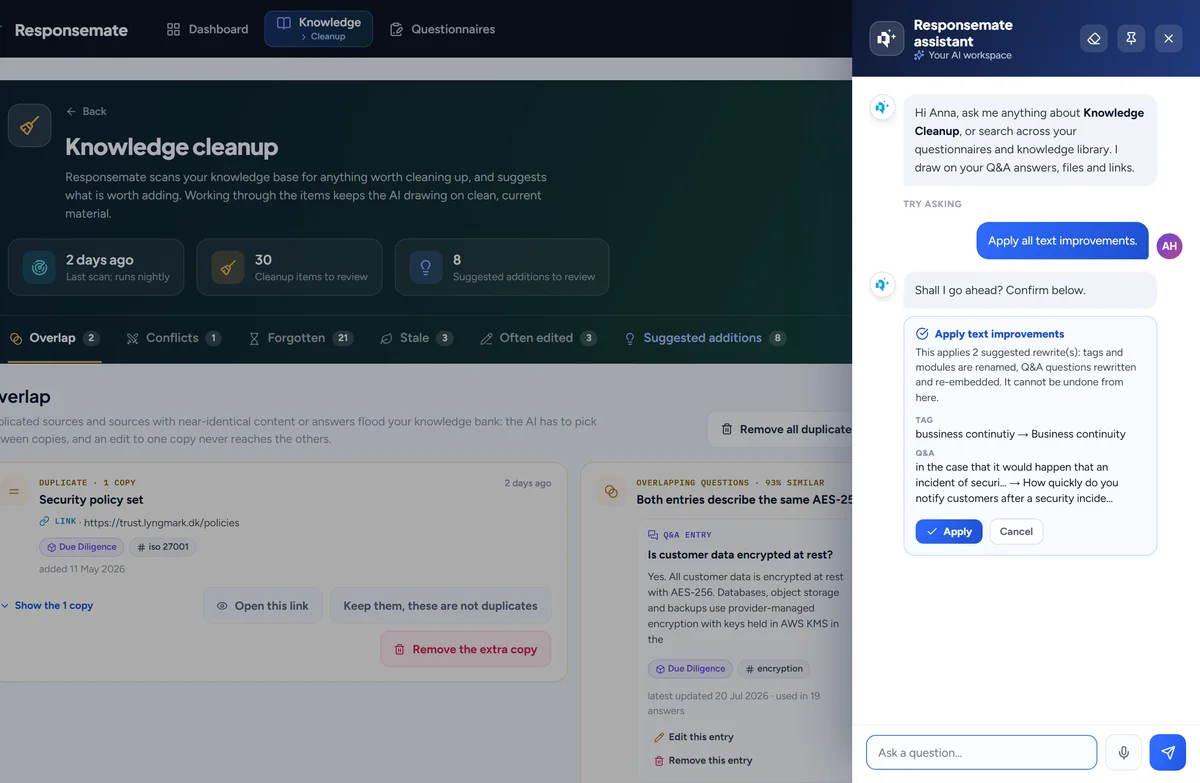
Runs the cleanup
Start a scan, apply text improvements, merge or keep overlapping pairs, accept or dismiss suggestions.
From the cleanup page the assistant can start a scan, apply text improvements, merge or keep overlapping pairs and accept or dismiss suggestions, in bulk if you ask.
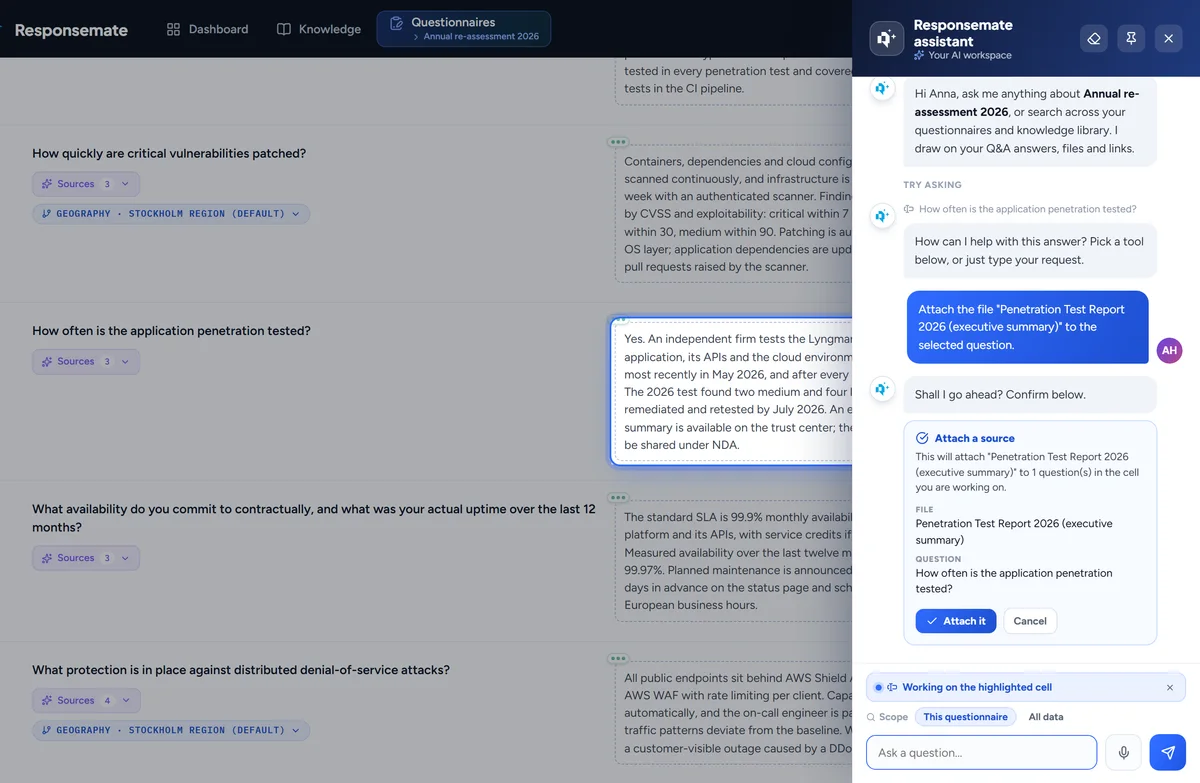
Attaches evidence
Attach a file from the library to questions, or accept the files the AI suggested for them.
The assistant attaches a file from your library to one or more questions, or accepts the files the AI already suggested for them.
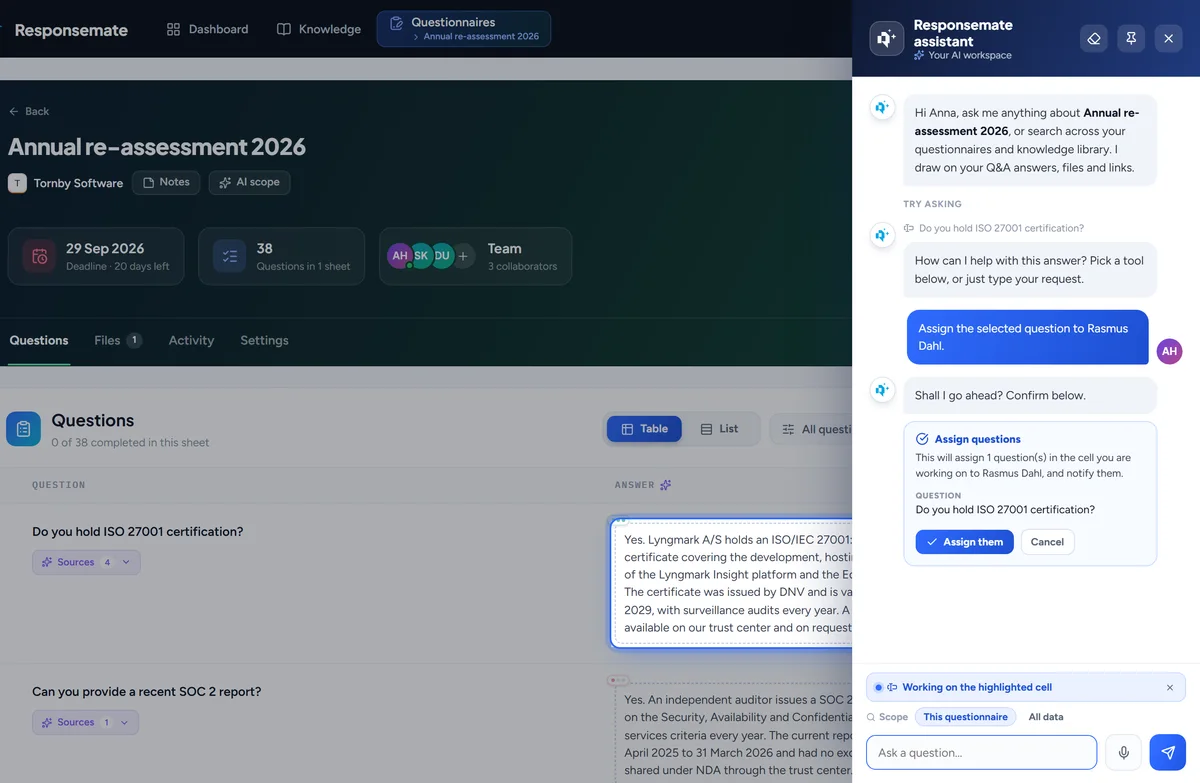
Nothing changes until you confirm
Every action is shown as a proposal first. You confirm it, and most can be undone from the same reply.
Every action the assistant wants to take is shown first as a proposal that names exactly what will change. You confirm it or drop it, and most actions can be undone from the same reply.
Dictate with your microphone
Speak instead of typing in the assistant. The transcript lands in the box for you to read before sending.
Press the microphone in the assistant and speak. The transcript lands in the box for you to read and correct before you send it. Audio is only used to produce the text and never kept.
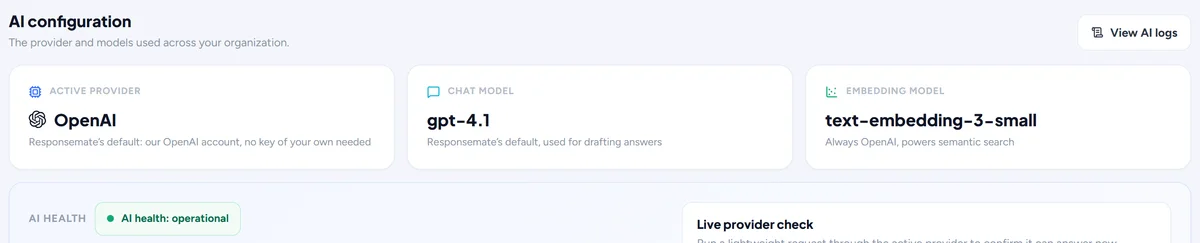
Your choice of AI provider
OpenAI, Anthropic, Azure OpenAI, Google, Mistral or Bedrock, with your own keys stored encrypted.
On the AI tab of the Account page an admin picks the provider, OpenAI, Anthropic, Azure OpenAI, Google, Mistral or Bedrock, and enters your own keys, stored encrypted. Test the connection before saving.
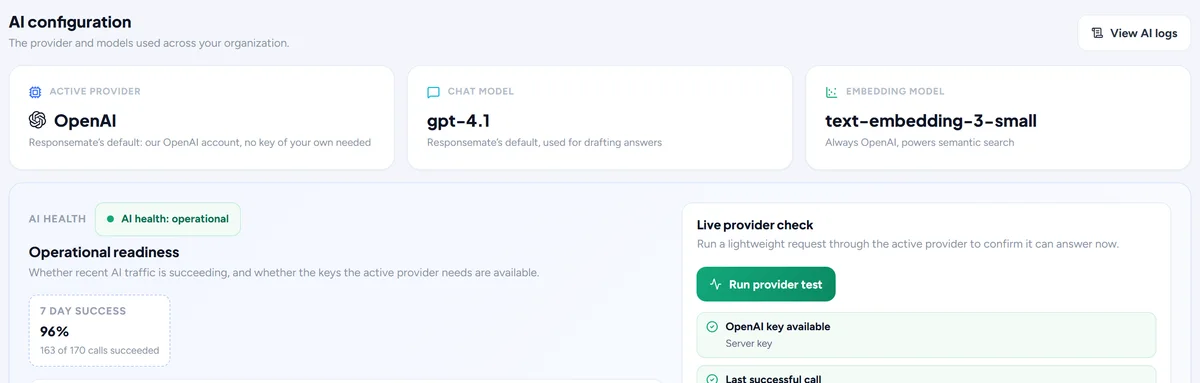
A model per feature
Choose which model drafts answers, chats, reads imports, summarises and does upkeep, and test the connection.
Each kind of AI work, drafting answers, chatting, reading imports, summarising documents and upkeep, can run on its own model. Heavy judgement goes to the strong model, mechanical reading to the fast one.
Search and matching on your provider
The embedding model behind search, drafting and cleanup: OpenAI, Azure OpenAI, Google, Mistral or Bedrock, on your key. A switch re-embeds once; search keeps working.
Search, drafting and cleanup find the right knowledge through an embedding model, and that model is a workspace choice: OpenAI, Azure OpenAI, Google, Mistral or Amazon Bedrock on your own key. A switch shows the counts, the approximate cost and the time first, re-embeds your knowledge once while search keeps working, and can be cancelled.
For example A workspace that keeps all its AI on Azure moves search and matching there too, and the Knowledge button shows the progress until it is done.

Help about Responsemate itself
Ask the assistant what a role can do or what happens when a SharePoint file moves: it answers from Responsemate's own help articles.
The assistant can answer questions about Responsemate itself, such as what an admin can do compared to a viewer or what happens when a linked SharePoint file is moved, from Responsemate's own help articles, alongside your knowledge base. An admin can switch it off on the AI tab.
For example "What can a viewer do?" is answered from the help article on roles, marked as Responsemate help in the sources.
Reports and clients
Every customer's history, how the AI is doing, and the record of everything that happened.
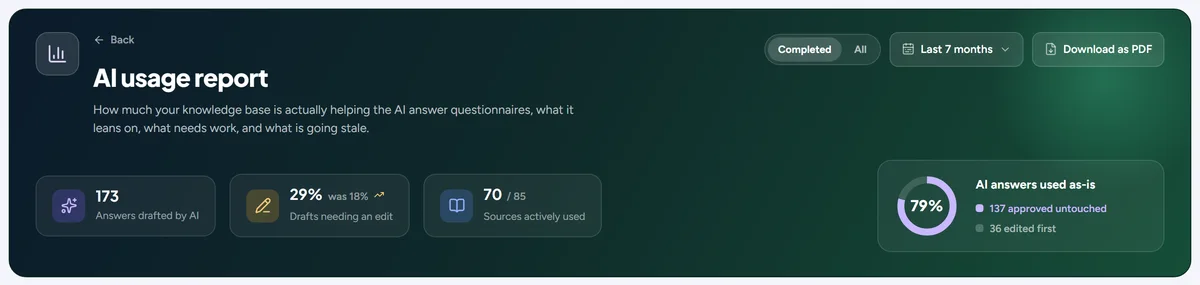
AI usage report
Which sources the AI used, how often its drafts were kept as-is, hours saved and confidence over time. Download it as a PDF.
A report on how the AI is doing: which sources it used most, how often its drafts were kept as they came, hours saved and confidence over time, per period. Download it as a PDF for a manager or a customer.
Activity history
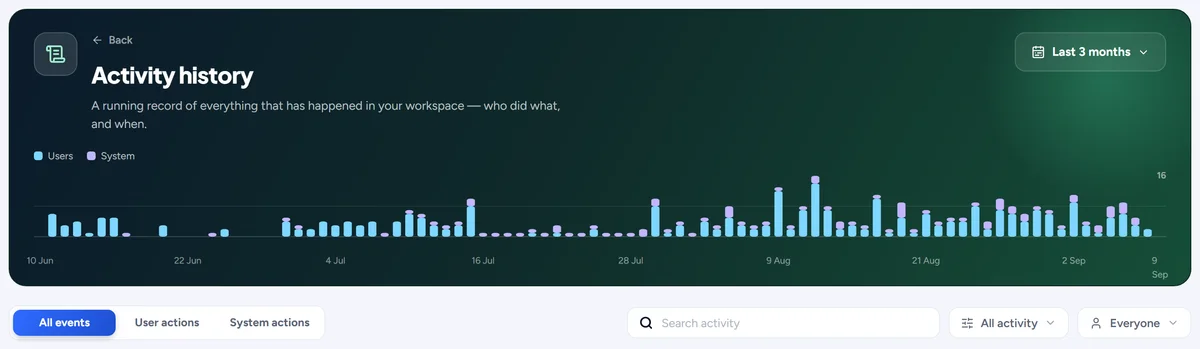
Everything that happened in your workspace, by day, searchable, filtered by person or kind, with the system's own actions too.
Everything that happened in your workspace, day by day: who did what, when, and what Responsemate did on its own, marked By system. Search it, filter by person or kind of action, and open any entry where it happened.
Clients
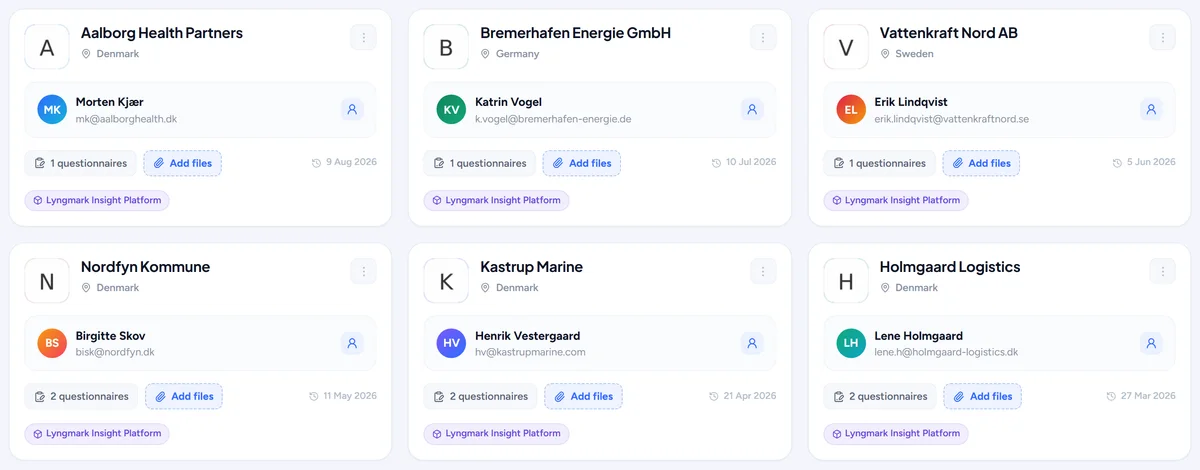
Every customer with contract documents, questionnaire history and a side-by-side comparison of two questionnaires.
Every customer has a page with its contract documents, its questionnaire history and timeline, its own knowledge base of answers that apply only to it, and a side-by-side comparison of two questionnaires.
AI logs
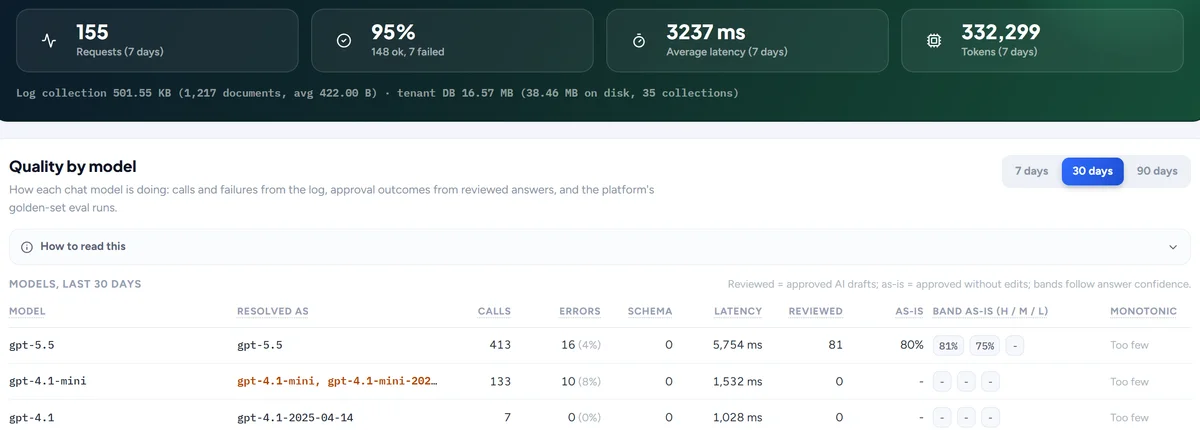
For admins: every call the AI made, what it was asked and what it answered, with a seven-day summary.
For admins: every call the AI made, what it was asked and what it answered, with duration, model, result and a seven-day summary of quality by model.
MCP log
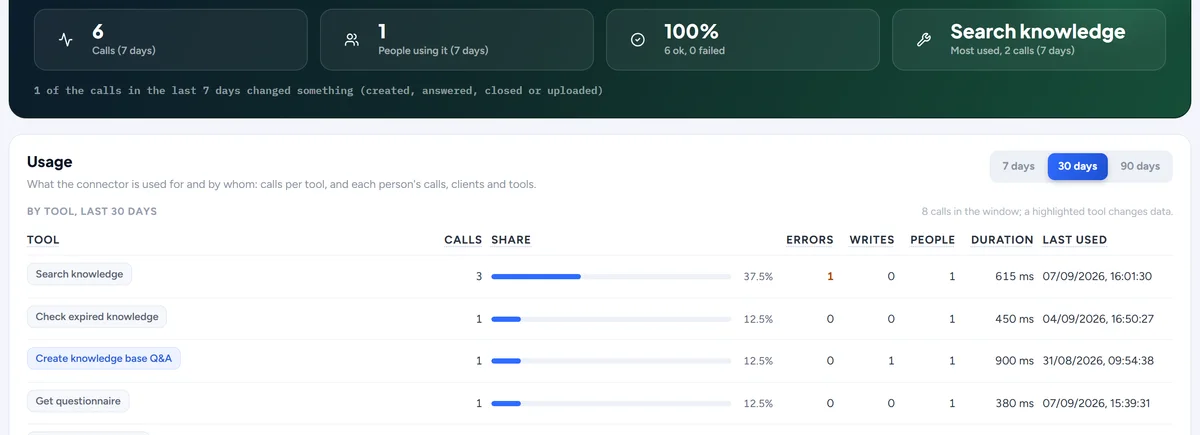
For admins: every call made through the MCP connector, who made it, which tool, what for, and how much each person uses it.
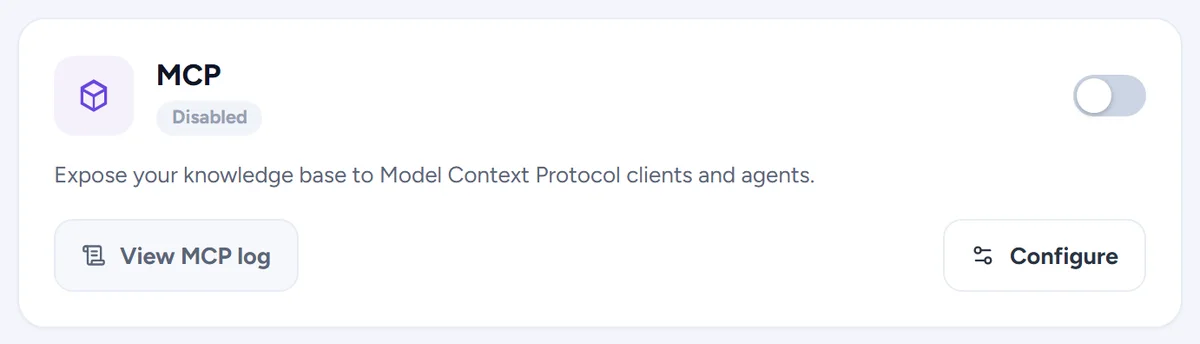
For admins: every call made through the MCP connector from Claude, ChatGPT or another client. Each row shows who made it, which tool, a one-line summary of what was asked (a search, a questionnaire read, an answer written, a file uploaded), how long it took and whether it worked. A usage card breaks the last 7, 30 or 90 days down by tool and by person.
For example See that one colleague searched the knowledge base forty times last week from Claude, and that nobody has used the questionnaire tools yet.
Dashboard
What needs you today, and how the AI is doing.
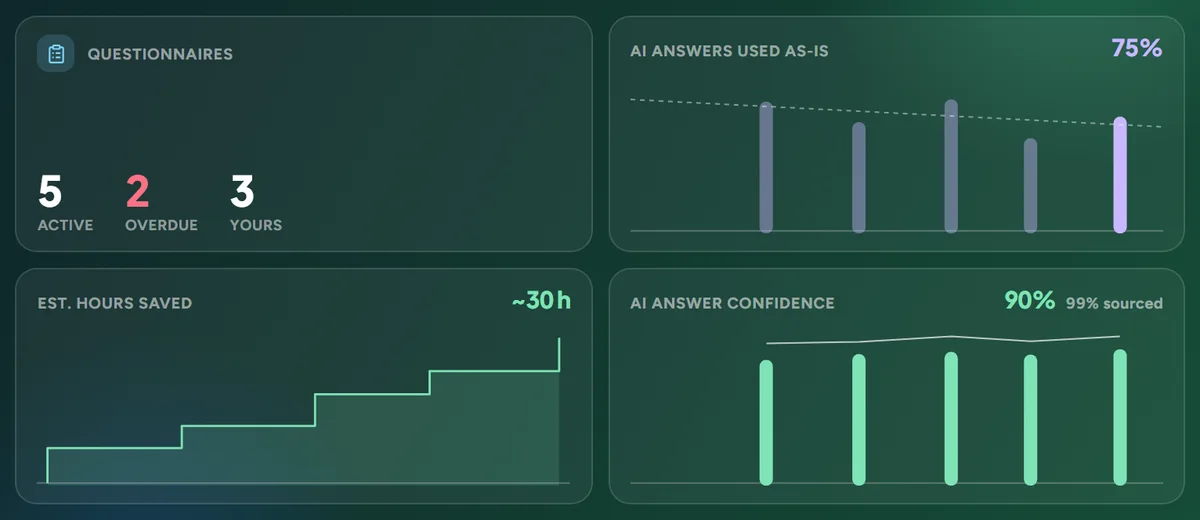
What needs you, and how the AI is doing
Active, overdue and your own questionnaires, cleanup and suggestions, freshness, next to answers used as-is, confidence and hours saved.
The four tiles at the top of the dashboard count what is on your plate and what the AI has done with it: questionnaires that are active, overdue or yours, cleanup and suggestions waiting on the Knowledge page, and how the AI is doing on answers used as they came, answer confidence and hours saved. Each figure is a link to the page behind it.
For example Two questionnaires are overdue and confidence dropped this week: click the tile and you are on the list, filtered to those two.
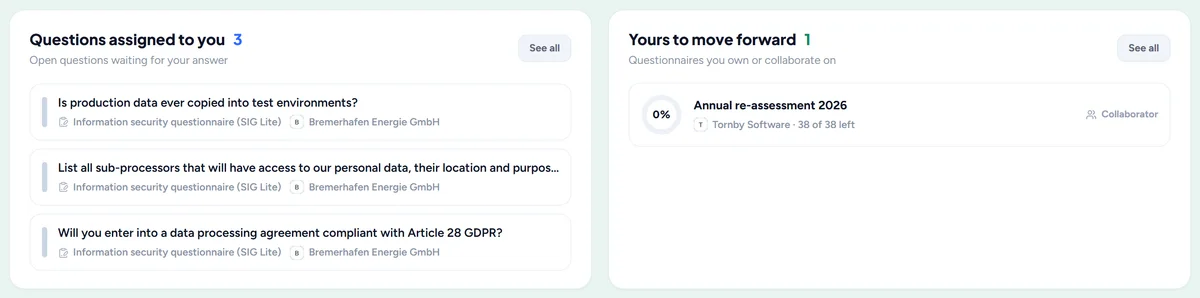
Continue your work
The questions on your desk and the questionnaires you drive, one click from where you left off.
The dashboard keeps a list of the questions assigned to you and the questionnaires you own or collaborate on, each with where you left off. One click opens the questionnaire on the right sheet and row.
For example You were halfway through the Security sheet yesterday: the card takes you back to that sheet, with the next open question in view.
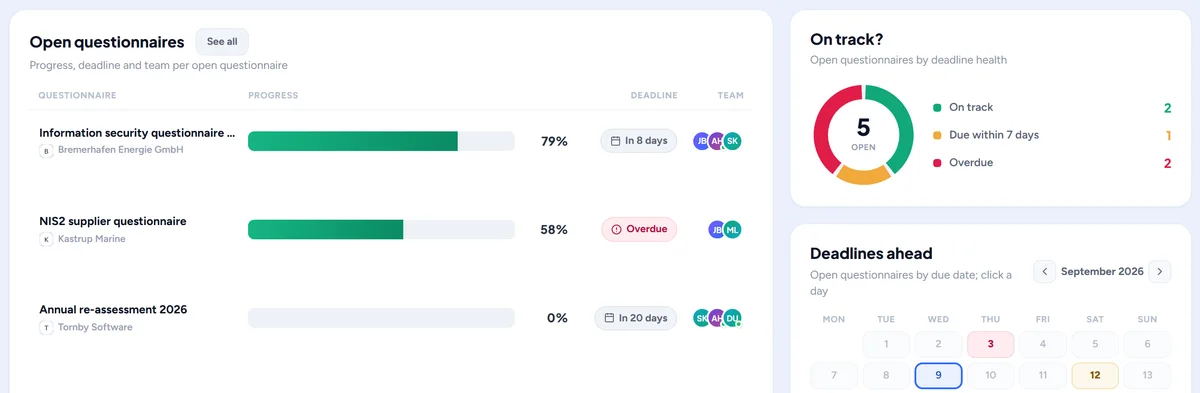
Questionnaires in flight
Every open questionnaire with progress, deadline and team, a deadline-health ring and a calendar of what lands when.
Every open questionnaire is listed with its progress, its deadline and its team, next to a deadline-health ring that shows how many are on track, at risk or late, and a calendar of what lands in the coming weeks.
For example Three questionnaires land in the same week: the calendar shows the pile-up before it becomes a problem.
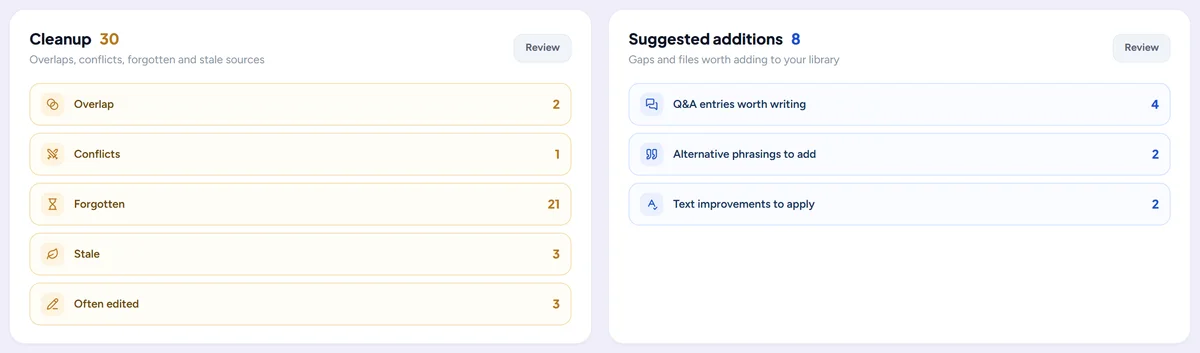
Your knowledge bank at a glance
Cleanup and suggestions by kind, the sources doing the heavy lifting, where answers come from and how fresh it all is.
A set of small charts about your knowledge base: cleanup and suggestions by kind, the sources the AI leans on most, where answers come from (Q&A entries, files, links or past questionnaires) and how fresh it all is. Each chart links to the page where you act on it.
Latest activity
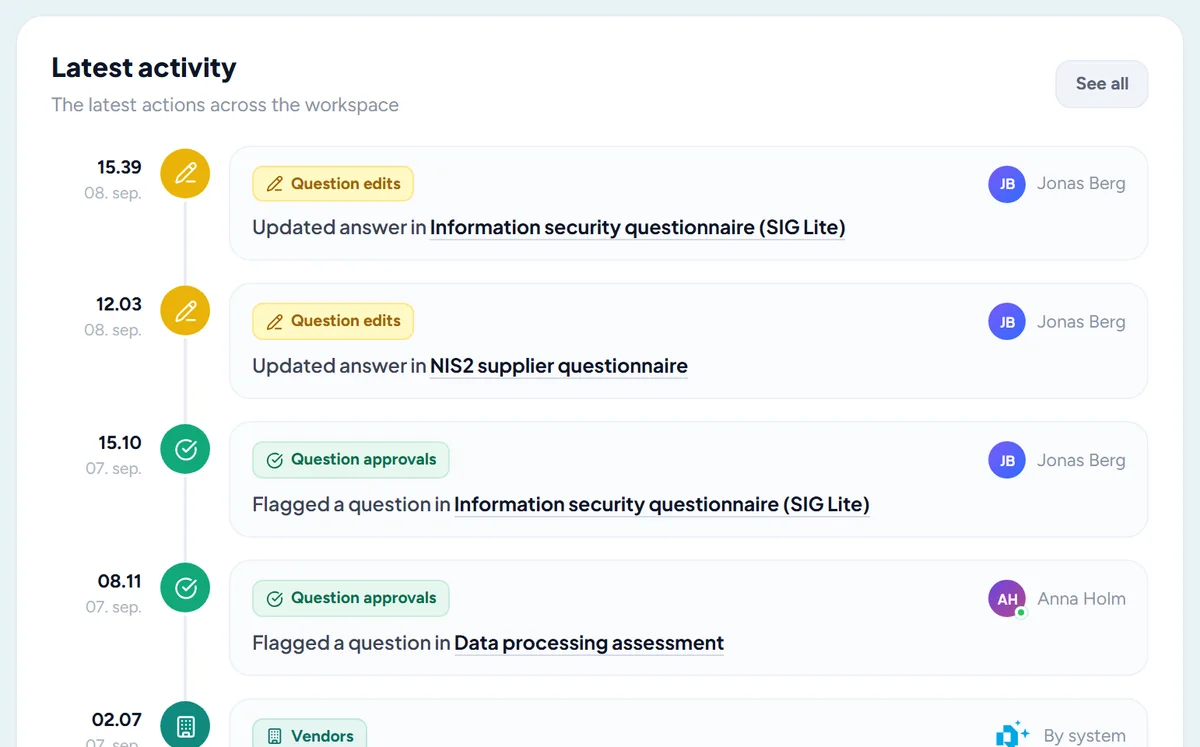
What your colleagues did today, with a link to the full history.
The newest entries of the activity history on the dashboard: who approved, edited, imported or uploaded what today, and what Responsemate did on its own, with a link to the full history.
A welcome on your first visit
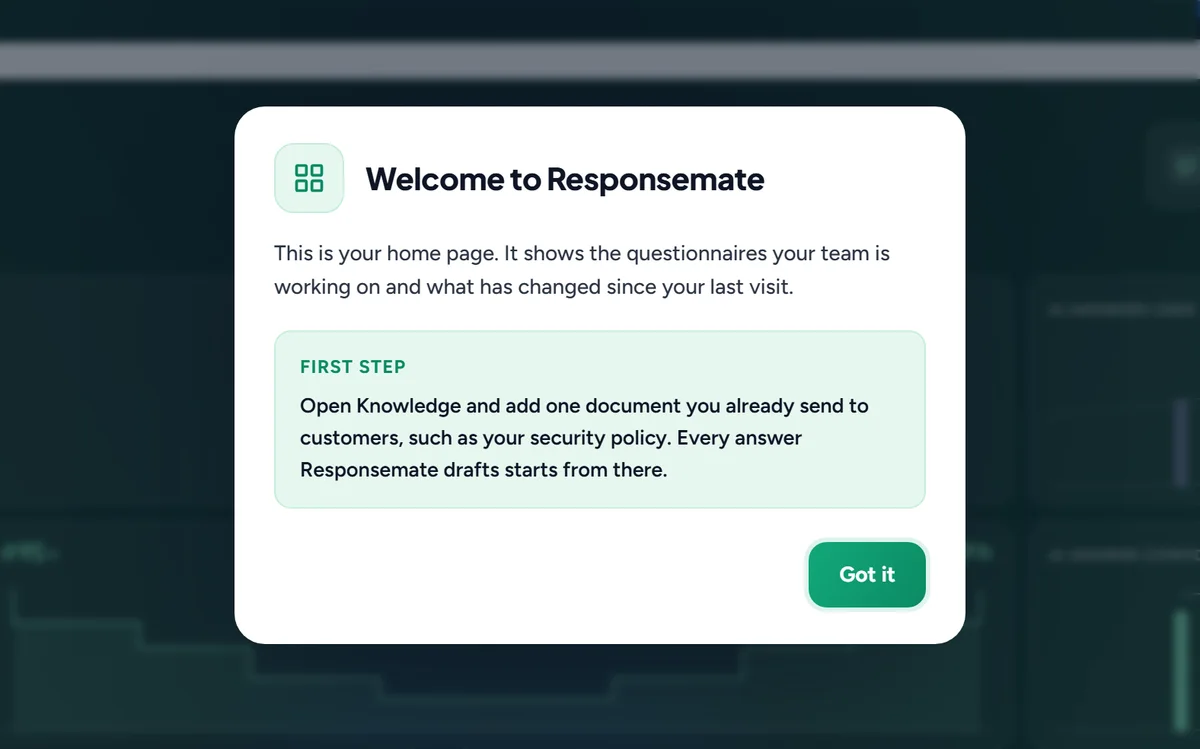
The first time you open the Dashboard, Knowledge or Questionnaires, a short welcome says what the page is for and what to do first.
The first time you open the Dashboard, Knowledge or Questionnaires, a short welcome opens over the page: what the page is for and the one thing to do first. Click Got it and it does not come back for that page. It returns only when the page's welcome is rewritten.
Team and integrations
Your people, your settings, and the tools you already use.
Team and roles
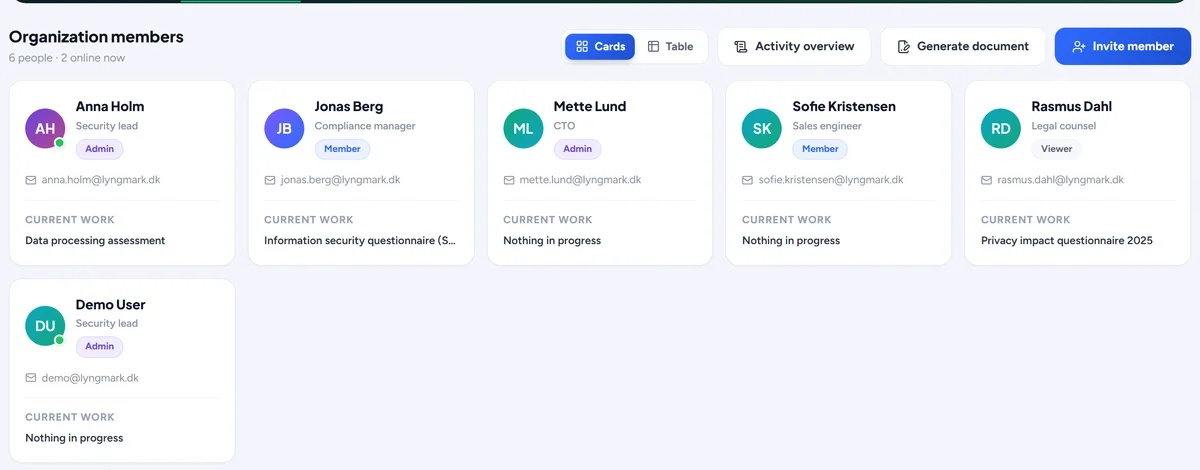
Invite colleagues by e-mail, set admins, members and viewers, see what each role can do, and disable an account without deleting its work.
Invite colleagues by e-mail and set their role: admin, member or viewer. A table shows what each role can do where you pick it. Disable an account when someone leaves, without deleting their work, and re-enable it later.
Notifications
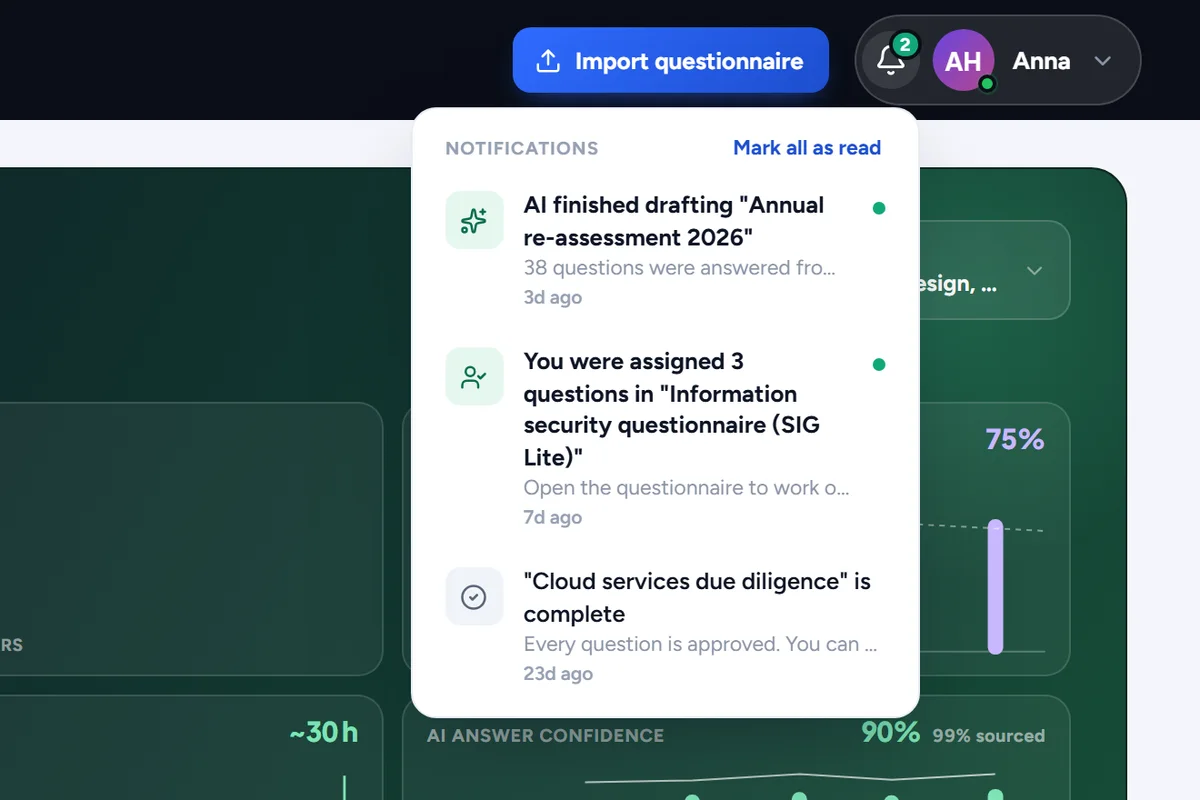
Drafts ready, questions assigned to you and questionnaires completed, in the bell tray at the top of every page.
The bell at the top of every page collects what concerns you: drafts ready for review, questions assigned to you and questionnaires completed. Each notification opens where it happened.
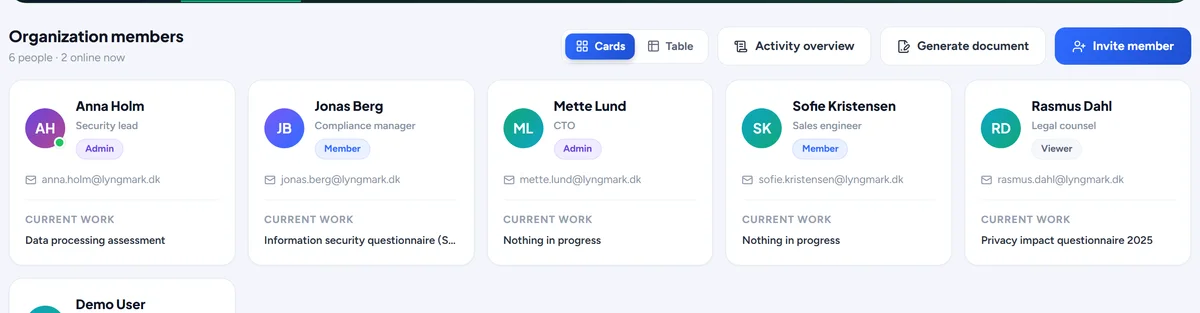
Who is online
A presence dot on every avatar shows who is working right now, and a profile card is one click away.
A green dot on an avatar means that person is working in Responsemate right now. Click any avatar for a profile card with their contact details and recent work.
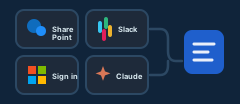
Sign in with Microsoft
Sign in with the Microsoft account you already use at work, no separate password to remember.
Organizations on Microsoft 365 sign in with the Microsoft account they already use at work, no separate password. An admin sets it up once with your Microsoft tenant.
Every automatic e-mail in one place
See every e-mail Responsemate sends on its own, who gets it and how often it can go out at most.
Under Account settings, Organization, the Automatic e-mails card lists every e-mail Responsemate sends for your workspace on its own: what starts it, who gets it and how often. Invitations and password resets are always on. Each mail is also limited, so an address never gets the same mail many times in a row.
For example Someone asks whether Responsemate could flood a colleague with invitations: the card shows that an address gets at most one invitation a day.
Choose how your team signs in
Switch Microsoft SSO or email and password on or off for your workspace, for example to make SSO the only way in.
Under Account, Integrations, Sign-in methods, an admin switches Microsoft SSO and email and password on or off for the whole workspace. A way of signing in that is switched off is refused on the sign-in page and everywhere else. People already signed in with it stay signed in until their session ends. Email and password can only be switched off while Microsoft sign-in is set up and the admin is signed in with Microsoft, so nobody is locked out.
For example Your company manages passwords and two-factor sign-in in Microsoft Entra: you switch off email and password, and everyone signs in with Microsoft from then on.
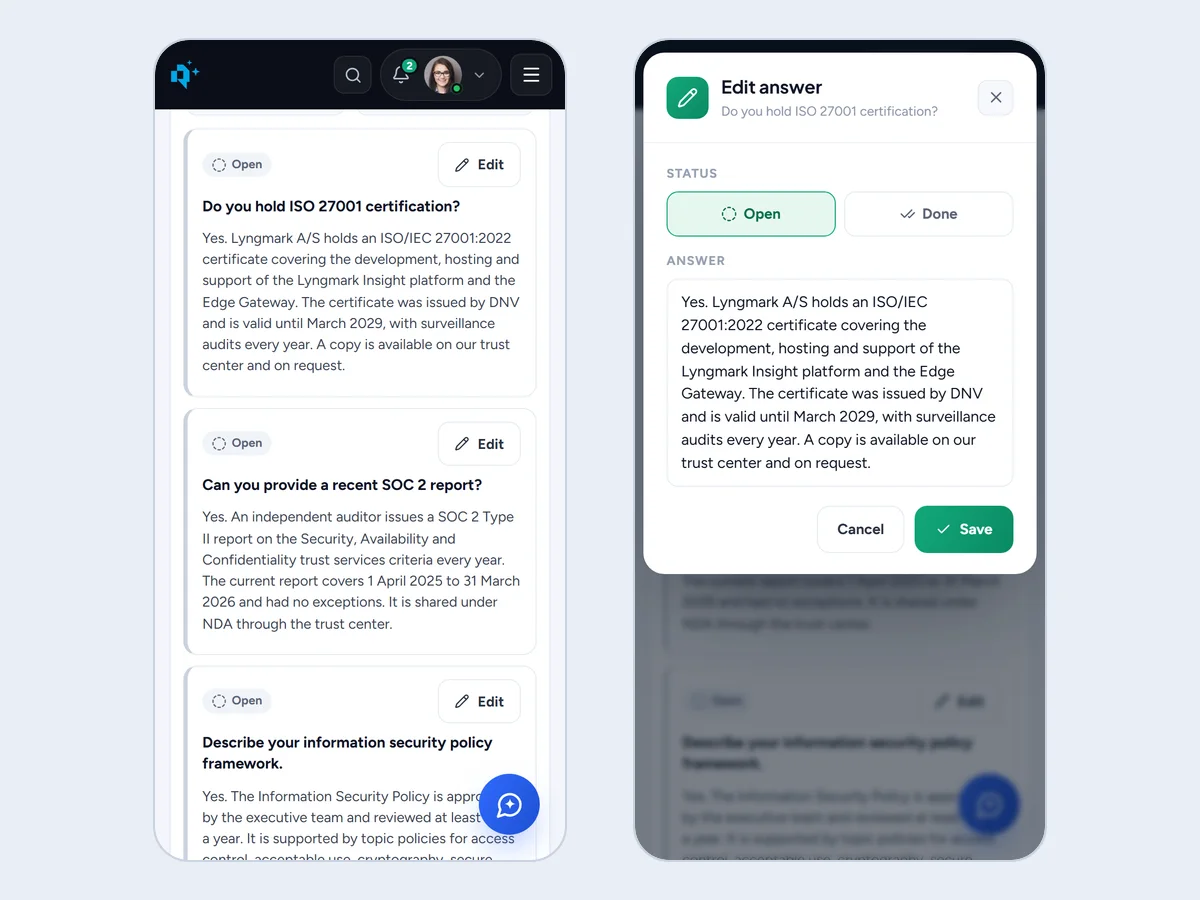
Responsemate on your phone
Read your knowledge base and questionnaires on a phone, change an answer and mark a question done. Heavy pages ask you to open them on a computer.
Open Responsemate in your phone's browser and the menu folds into one button at the top. Knowledge and your questionnaires open in a read view. On a question, tap Edit to change the answer text or set it to Open or Done, then Save. Pages built for a big screen, such as imports, cleanup, settings and reports, show an Open on a computer note with a way back.
For example On the train you read a colleague's draft, fix one word, mark the question Done and save.
Claude connector
Use Responsemate from Claude: search knowledge, read and update questionnaires, add Q&A entries, add, replace and retire files, check what expired.
Connect Responsemate to Claude and work from there: search your knowledge, read and update questionnaires, add Q&A entries and files, and check what has expired, all with your own permissions.
Slack
Ask Responsemate from Slack with a slash command or a mention, and link your Slack account to your workspace user.
Install the Slack app and ask Responsemate from a channel with a slash command or a mention. It answers from your knowledge base and can send files. Link your Slack account to your Responsemate user so actions are yours.
Data retention you control
Keep the activity history and the AI log forever or for 24, 12 or 6 months or 90 days, and choose whether the AI log stores prompts and replies.
On the Organization tab an admin chooses how long the activity history, the AI log and the connector log are kept: forever, the default, or 24, 12 or 6 months or 90 days, after which older entries are deleted every night. A second switch decides whether the AI log stores the prompt and the reply of every call, or only the model, the tokens, the timing and the outcome. A disabled account can also be anonymised, so a former colleague's name and address are gone while their work stays.
For example A workspace under a 12-month log policy sets the period once; the audit trail is complete for the last year and nothing older is kept.
Your legal documents, one click away
The DPA, the Customer Agreement, the Terms, the sub-processor list and the security overview, with your name filled in, to read in a window or download as Word or PDF.
A certification audit asks for the DPA with every supplier, and the person collecting them is rarely the one who signed. The Legal documents button on the Organization tab opens every agreement and statement behind your workspace: the Data Processing Agreement on the Danish Data Protection Agency's standard clauses, the Customer Agreement, the Terms of Service, the sub-processor list and the security overview. Each can be read on a page or downloaded as a Word file, with your organisation's name already filled in and the fields for the two parties to complete marked in yellow.
For example Your ISO 27001 auditor asks for the supplier DPA; a member opens Legal documents, downloads it, and hands it over the same minute.